393 | How to Create Custom CAN Communications
Summary
In this webinar we’ll be looking at the CAN communications templates we’re using between an ECU Master CAN steering wheel, a MoTeC C125 dash, a MoTeC M150 ECU, and an ECU Master PMU. This involves understanding CAN templates and how to decode CAN data.
| 00:00 | Hi Performance Academy here, welcome to another one of our webinars and today we're going to be diving into some slightly more complicated CAN bus messaging and we'll look at how we can use CAN bus messaging to talk to components from different manufacturers and this does get a little bit down in the weeds but I know this is going to be something that's going to be useful for those who are integrating components or electronic components from different manufacturers into their builds. |
| 00:26 | So, what we're going to cover today is the very basics of what a CAN message is, we'll then talk about how we can use these CAN messages to communicate between different devices, incorporating what we'd really refer to as a CAN gateway. |
| 00:41 | We'll talk about the devices we have and then what we're trying to achieve. |
| 00:45 | And essentially here what we've got is some components added out of our SR86 endurance car. |
| 00:51 | So, if we jump across to our overhead for a moment, here I've got the steering wheel off the car and I have shown this before in previous webinars but this is an ECU Master wireless steering wheel panel. |
| 01:05 | So, it's a nice way of incorporating a bunch of different switches as well as rotary multi position switches and then on the back we've got our paddles for our paddle shift. |
| 01:16 | The advantage of course with this being wireless is we don't have a complicated sort of curly cord to get between the steering wheel and the chassis or alternatively a more high end solution to this is a milspec or autosport style pass through connector that works as a hub for the steering wheel. |
| 01:35 | Quite expensive so this is a nice sort of in the middle way of getting that data across to the rest of your electronics without needing a curly cord. |
| 01:45 | So, that's great and a product that works really really well and the problem with us, though, is that we're not using ECU Master electronics for the remainder of the car. |
| 01:54 | Instead, for our ECU we have a Motec M150 and these are quite locked down in terms of the CAN bus, particularly what they need to see in terms of the way the data is sent to them. |
| 02:09 | So, in other words we can't directly integrate the ECU Master wireless steering wheel panel and get our paddle shift inputs for example straight into our Motec ECU. |
| 02:20 | So, that's a bit of a problem because the way the data is sent out of the switch panel, the steering wheel panel, is not compatible with what the Motec is expecting to see. |
| 02:28 | So, we've got a bit of a problem on our hands, how are we going to actually integrate that, how are we going to get that to work? Well in this case we've got the advantage that we already have a Motec C125 dash in the car. |
| 02:40 | This is a Motec C127 but essentially same same and one of the advantages with a Motec C127 dash is that it has a bit of a gap. |
| 02:50 | This is a very very user definable, very easily user definable CAN bus both with inputs and outputs. |
| 02:57 | So, what we're doing is essentially using the C127 or 125 in our case, as a gateway. |
| 03:03 | So, it is basically reading in all of the messages from the ECU master steering wheel panel, we're decoding them in the MoTeC dash and then I'm sending that data out as required to the MoTeC M150 ECU in a way that the ECU is expecting to see it and a way that it can understand. |
| 03:22 | So, obviously there's some fairly expensive electronics in this system but the reality is that we already had the dash in the car for a variety of other reasons anyway. |
| 03:32 | One of the key ones is that we're using that as a central logging hub. |
| 03:37 | Now, again this is going to get a little bit down in the weeds, it is a little bit complicated so we will have questions and answers at the end as normal. |
| 03:44 | So, if there's anything that I sort of talk about that you are struggling to understand, then we'll get into that at the end. |
| 03:52 | Alright, so now we've got a bit of an idea of what we're actually trying to achieve here. |
| 03:56 | We need to talk about what CAN is. |
| 03:58 | I'm not going to go too deep into this here, if you do want further information beyond what we talk about in today's webinar, we do have our CAN bus decoded course which you'll find in our courses page at hpacademy.com forward slash courses where we go into each and every one of the elements in a lot more detail than I can do justice to here in a live webinar. |
| 04:19 | Essentially CAN is an OE communications protocol that's been prevalent since the 2000s and it's a great way of sending a lot of data to a lot of different devices around the car. |
| 04:31 | And for example previously if we wanted to get engine coolant temperature into the dash as well as the ECU and perhaps another module that may also need it, we'd need to have wired that sensor into each of the devices where we want to see that data. |
| 04:47 | With CAN what we can instead do is transmit all of the data from the ECU to the dash cluster, to maybe the transmission control unit or anything else that requires it. |
| 04:57 | So, we only need two wires for our CAN bus, CAN high and CAN low, these are a twisted pair and this bus runs around the car between all of the different devices that we'll be needing to either transmit or receive data on that bus. |
| 05:13 | And this greatly simplifies the wiring in our cars, particularly as our cars are becoming more complicated and we need more of this data to be shared between the different modules. |
| 05:22 | So, it is a very powerful way of communicating. |
| 05:26 | For us in the aftermarket it also opens up our ability to basically integrate electronics from different manufacturers and because, assuming of course that they are communicating via CAN, that protocol is defined, if we understand how that CAN communications protocol works, and we can decode the data coming from a different device, we can then integrate as we're seeing here, electronics from different manufacturers and make them all work seamlessly together. |
| 05:54 | So, the basics of a CAN message, the message will have an ID, so essentially this is the address, so for example if we want to look up coolant temperature, we know what address that's being sent out from the ECU on, if we want to decode that in the dash, then all we need to do is set the dash to look at that particular address, we know that that is where that piece of data that we want is going to be located. |
| 06:21 | But there is a little bit more to it than that. |
| 06:23 | The data is sent out as 8 bytes of data, and each of those individual bytes is made up of 8 single bits, and a bit is simply a 0 or a 1, this is essentially how all electronics communicate. |
| 06:39 | So, depending on how we're sending that data, that makes a big difference to how we're going to be decoding it as well. |
| 06:46 | For a single byte of data, so 8 bits of data, each with a 0 or a 1, this means that we can have a maximum value of 255. |
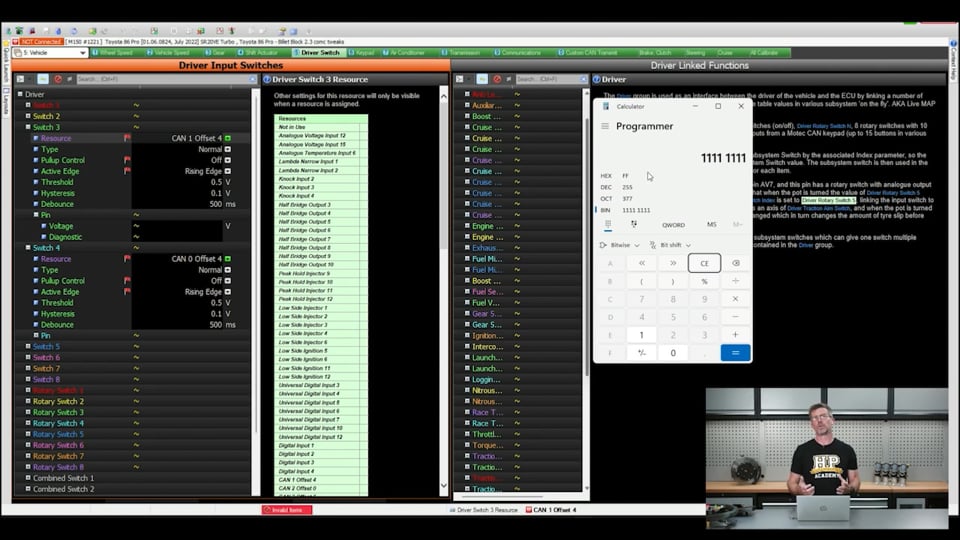
| 06:56 | And what we'll do here, let me just bring up this, let's just jump across to my laptop screen for a moment here, and this is actually quite a handy, quite a powerful tool when you are working with CAN is changing your calculator to the programmer mode. |
| 07:14 | And now what we can do is we can enter and read data in hexadecimal, decimal which we normally work in and binary as well which I've got it set to at the moment so we are in binary mode so if we enter, we know that a single byte is made up of 8 individual bits so if I just enter 81, so that's going to be 1 byte of data, we can see that in decimal this gives us a maximum value of 255. |
| 07:43 | So, a single byte of data can represent values between 0 and 255, that's the states that are available there. |
| 07:51 | So, this becomes a bit problematic as well because it depends on the data that we're transmitting as to how we're going to transmit that. |
| 08:00 | So, for example if we're looking at one of the individual switches on our steering wheel here, so one of the individual buttons, these buttons obviously only have one state or two states. |
| 08:11 | They're either on or they're off. |
| 08:13 | So, that's going to be something that obviously can be easily represented by a single bit of data. |
| 08:19 | The individual bit is either a 0 or a 1 so it's a great way of representing the status of a button like that. |
| 08:27 | When it gets to our rotary knobs though for example, these are an 8 position rotary knob so no longer can we use a single bit to represent that data. |
| 08:40 | Let me just get this. |
| 08:41 | Let me get back to my notes here for a second. |
| 08:44 | When we're looking at sending more complicated data, so let's say for example we want to send our throttle position. |
| 08:53 | So, obviously our throttle position sensor is going to span from 0 to 100%. |
| 08:59 | So, this would probably be a pretty good match for sending that via a single bit of data because that single bit remember can represent values between 0 and 255. |
| 09:11 | Now, what we also need to understand is how sending the data, how we send the data will affect the resolution of that data. |
| 09:20 | So, for example if we choose to send throttle position as a single bit, what we can find is the resolution or step size that we're going to end up getting if we do that. |
| 09:29 | So, essentially if we divide 100 by 255, we've got 255 distinct steps in a single bit of data, what that's going to mean is each of those steps is going to be 0.4% jump in our throttle position. |
| 09:45 | Which probably for most instances is going to be absolutely fine. |
| 09:51 | We probably don't need to get much more granular than that. |
| 09:55 | However, what if we were now going to send that data, we're going to send data of engine RPM instead. |
| 10:04 | And let's say that we're going to want to span between 0 and 8000 RPM. |
| 10:11 | Now, if we send that data as a single byte, now we've got a bit of a problem because if we divide 8000 RPM by 255, that means that each step is going to jump by 31 RPM. |
| 10:24 | Now, whether or not that's going to be an issue really depends on sort of what you want to do with that data. |
| 10:31 | Probably not necessarily an issue for a rev counter but for something where we need more accurate representation of what the actual engine's doing. |
| 10:38 | What the engine speed is, is probably not going to be the best way of sending it. |
| 10:43 | So, how do we deal with this? Well what we can now do is choose to send that data over multiple bytes. |
| 10:49 | In this case we could choose to send that data over two bytes instead of one. |
| 10:55 | And if we come back across to my laptop screen, let's see how that affects things. |
| 10:59 | So, we left off here with a single byte of data, a maximum value, all of the individual bits, all eight bits are set to ones and we know that that gave us our decimal value of 255. |
| 11:10 | Let's just simply add another eight ones to this. |
| 11:15 | OK so now we've got 16 bits which is two bytes of data and we can see that this jumps up massively now. |
| 11:22 | So, now we've got a maximum value of two bytes of data, spans all the way out from 0 to 65535. |
| 11:30 | So, this would probably be a very good match for our RPM data and if we now did the same calculation with our 8000 RPM divided by 65535, we now get resolution down to 0.1 RPM which is probably much more than we'd need for just about anything. |
| 11:49 | So, by choosing how we send the data, how many bytes or individual bits we're going to use, that gives us a lot of flexibility in making sure that we can receive and decode the data in an appropriate way. |
| 12:02 | A good case of this where we might need to actually span out to four bytes. |
| 12:07 | So, four bytes of data would be GPS latitude and longitude. |
| 12:09 | These are very, very large numbers and if we want to get the accuracy that we need for that sort of input, then we're going to need to be able to use more data. |
| 12:22 | So, four bytes would be the way we would send out GPS data. |
| 12:25 | Now, if we come back to our TPS example for a moment. |
| 12:29 | So, remember we're sending this out as one byte of data and this gives us a maximum value of 25535. |
| 12:37 | So, this is where scaling our data also comes into play. |
| 12:42 | And let me just head over here for a second. |
| 12:46 | Let's jump onto my laptop screen for a moment and what we'll do is we'll get rid of this. |
| 12:51 | I'm just going to, I'm going to go into much more detail about what all of this is in a moment so don't get too worried about it now but I just want to show you, let's see. |
| 13:03 | Alarm button will probably be sufficient. |
| 13:05 | No, that's a bad example. |
| 13:08 | Push to pass is probably a good example. |
| 13:10 | OK so at the bottom here we can see this is how we set up the receive template so that the MoTeC Dash in this case can decode the data into something that makes sense. |
| 13:21 | And at the bottom here we can see that we've got three little values. |
| 13:25 | We've got a multiplier, a divisor and an adder. |
| 13:29 | And depending on what we do with these values, this will basically scale the raw data that's coming in as a canned message and turn it into something that we can make sense of. |
| 13:39 | So, to get a little bit more specific with this, if we use our example of throttle position spanning out to 255, we probably don't want to display throttle position on our data logger or on our dash as a value from 0 to 255. |
| 13:53 | It's not going to make a lot of sense. |
| 13:56 | We expect to see values of 0 to 100 so that's what we want to basically scale this into. |
| 14:02 | So, in this example, let's just say for the moment that our channel that we're looking at is not push to pass, it is in fact throttle position. |
| 14:10 | So, we know that our maximum value there is So, what we want to do for a start is take our divisor here and we want to divide by 255. |
| 14:20 | So, what that means is that when we're at full throttle, the raw value coming through is 255. |
| 14:26 | We're dividing that by 255, of course 255 divided by 255 is going to be 1. |
| 14:32 | But that's also not going to be much use. |
| 14:34 | What we're then going to do is come over to our multiplier and we're going to multiply by 100. |
| 14:39 | So, now we're taking our 1, multiplying that out by 100 so now we're going to be spanning nicely between 0 to 100%. |
| 14:47 | So, the scaling is really really important to actually make the values into something that is sensible and actually match what we're expecting to see. |
| 14:56 | And that's a big part of CAN decoding which I'm not going to go too much further into in this webinar. |
| 15:02 | But otherwise you're going to get let's say coolant temperature or air temperature in values that just don't make absolutely any sense at all. |
| 15:10 | Alright, so now we've got like a very high level view of what we're trying to do, we're going to go through the process of actually getting the data from our ECU master steering wheel panel into our dash and decoding it into a way that makes sense. |
| 15:26 | Just give me a second here just to get back across to my notes. |
| 15:30 | And this all really starts with actually looking at the manual. |
| 15:36 | No big surprise here, it's always a good place to start when we're doing anything technical. |
| 15:40 | So, let's just jump across to my laptop screen here. |
| 15:42 | So, this is the wireless racing panel manual and I'm actually at the very end of the manual here, there's a lot more information in it related to just the general operation but we're just looking at the CAN bus information. |
| 15:56 | So, here is all of the data for how all of this works. |
| 16:00 | All of the inputs and outputs from the steering wheel panel are transmitted. |
| 16:05 | And what we want to do for a start is look at this here which is our CAN ID. |
| 16:10 | This is the key point, remember the ID is basically the address or road map to where we're going to find the data. |
| 16:18 | So, we can see there that it says by default the base address is 0x which just simply means that the data is being represented in hexadecimal rather than decimal which we're normally expecting to see. |
| 16:30 | So, the address is 640. |
| 16:33 | Then we know that we can have 8 bytes of data per address. |
| 16:38 | Once we've gone through those 8 bytes, we'll then step up so the next address beyond this, as we can see here, is our ID plus 1, in other words the next address that we're going to use is 641. |
| 16:52 | Straight away this actually presents a bit of a problem in our case because 640 actually clashes with the address. |
| 17:00 | So, the data that the Motec M1 is natively sending out to the dash for all of the normal parameters that we'd want to see, sort of RPM, throttle position, etc. |
| 17:10 | So, we've got a clash that's not going to work, that's going to basically bring down the bus and give us information that is completely useless to us. |
| 17:17 | Fortunately the ECU Master wireless racing panel can have that base address reconfigured. |
| 17:24 | So, we've done exactly that and all we need to do here is choose an address that we know isn't going to clash with anything else. |
| 17:31 | We've actually got a lot of stuff going on on the CAN bus on this particular vehicle but what we did was we chose the address hexadecimal 700. |
| 17:41 | So, that's the first thing we had to do. |
| 17:46 | Let's just scroll down and we'll have a quick look here at some of the actual data. |
| 17:50 | So, the information that we're going to cover off today is on the base address identifier plus 2, in other words in default form it would be 642. |
| 18:01 | In our case we know that that's going to be 700 plus 2 so 702. |
| 18:07 | So, we can see here we've got in the, shows us exactly how it's set out. |
| 18:13 | So, first of all we've got the byte and then the bits, the channel, the data type and the range. |
| 18:21 | So, for example here in our first, our zero, our first byte of data, we've got both of the our rotary switches being, or two of our rotary switches being sent out. |
| 18:32 | Rotary 1 and rotary 2. |
| 18:35 | So, again this makes sense because we know that we can span up to 255 using a single byte of data. |
| 18:44 | We've got two switches that have 8 positions so this is going to be sufficient. |
| 18:48 | If we break this down and basically split that byte in half, we've got 4 bits for each of these channels. |
| 18:55 | And each of those bits has a range of 16 or 0 to 15. |
| 19:01 | So, sufficient to basically represent our values of 1 through to 8. |
| 19:08 | So, how do we actually see this working out? Let's just bring up our calculator again for a moment and we'll clear our entry here. |
| 19:16 | So, we know again that the individual byte is 8 bits so for half of that we can see we've got that value 0 to 15. |
| 19:26 | So, that's just representing basically the information that it is giving us here. |
| 19:31 | This does present a little bit of a complexity for us though when we go to decode this because what we now need to do is apply what's called a mask so that the dash is ignoring half of that byte and that is what is being represented here. |
| 19:48 | So, we can see that for our rotary 1, we've got this mask of hexadecimal. |
| 19:54 | 0x is hexadecimal as I mentioned earlier. |
| 19:57 | F0. |
| 19:58 | To look at the other piece of data, the mask is the opposite way around which is 0f. |
| 20:05 | And to see how that works, let's have a look here again on our calculator. |
| 20:10 | So, we've got our first half of our data there, 4 ones. |
| 20:14 | Let's just take this out to, or actually for a start, let's look at that value there in hexadecimal which is f. |
| 20:21 | It doesn't have the 0 but essentially this is the value. |
| 20:24 | It's the same as 0f which is the mask here for our rotary 2. |
| 20:29 | If I add four 0s and one more, can't count, we can see that now in hexadecimal this is presented as f0 which we can see is also our mask for rotary 1. |
| 20:42 | So, basically this mask just defines which bits we're going to actually be focusing on when we're decoding one byte of data and trying to extract two rotary position switches out of it. |
| 20:55 | Hopefully you're all still with me. |
| 20:56 | I did say this is a little bit complicated. |
| 20:58 | Let's just jump back into our Dash software and see how we've set up this decode. |
| 21:04 | So, first of all we've got our template here, our receive template which is ECU master steering wheel, this is something I've made myself, this isn't something that is by default in the MoTeC Dash software. |
| 21:17 | So, we'll double click on it and first of all we can see that the device is set up here as a receive message which means that the Dash is expecting to receive information. |
| 21:27 | We can come down here to our base address and our base address is 706, I think I might have actually got myself incorrect there when I said the base address I had reprogrammed the unit to is 700 but regardless, whatever you program it to, you can see from the user manual how you would step through each of the different addresses. |
| 21:49 | So, 706 and this is also a standard address. |
| 21:53 | We've got our base format and we're allowing a fast receive at whatever transmission rate the steering wheel panel is sending. |
| 22:01 | Right so that's our base setup there. |
| 22:02 | Now, we want to come over to our receive channel so we'll click on that. |
| 22:06 | And let's have a look here, we've got the first two which we've just been looking at in the manual, I've defined them as a boost target knob and a traction control knob. |
| 22:17 | So, let's change this first one and see what we've got here. |
| 22:20 | So, exactly what we saw in the manual, we've got our, actually we'll start with the fact that our offset which is basically looking at what byte we're looking at, this is 0 so we're starting at the first byte of information on that address and the length of this message that we're looking at is simply one byte long. |
| 22:42 | Then we've got that bit mask which I've just explained and that simply comes from the user manual. |
| 22:48 | And this is something, I think the bit masking is probably the bit that, a bit, no pun intended, that a lot of people do struggle with when they're getting used to CAN which is why I thought this webinar would be quite helpful. |
| 22:59 | Once we've got that masked, we also need to add some, a multiplier divisor and an adder there just to essentially replicate what I've set this channel up here is replicating an analog voltage input with a base resolution of 0.001 volts so what we're trying to do is basically just get this scaled out. |
| 23:20 | So, that it makes sense so it's stepping between in this case maybe 0 to 8 volts so we can decode it and make sense of it. |
| 23:28 | So, that's our first one there. |
| 23:30 | And then if we come into our traction control knob, no big surprises here, we've got the same offset so we're still looking at the first byte, we're still only looking at one byte of data and this time of course our bit mask is 0F just to match what we've got in the user manual. |
| 23:46 | So, that's how we can basically extract the first four and the last four bits of data out of a single byte, decode them and make sense of them. |
| 23:57 | Let me just check on my notes here. |
| 24:01 | Alright, so we'll close that one down and we'll head back across to our user manual and we'll have a look now at how we can extract a individual bit and we can see in this part here on the fourth byte of data, we've got eight switches which obviously makes sense. |
| 24:20 | We've got eight bits of data or eight bits representing a single byte so this obviously works quite nicely when we've got eight switches. |
| 24:27 | Each of those individual switches can be represented by a single bit of data. |
| 24:33 | So, here we've got the masks for each of these so switch one obviously 01 and that steps up. |
| 24:39 | We'll show you how that works in a second and let me just check my notes. |
| 24:47 | Let's have a look at that 01. |
| 24:50 | Switch one for example here and if we just bring up our calculator again so we'll clear our entry there and I can't enter a value of, well actually I can, sorry, I've entered a 1, we've got three 0s come up at the start and we can see that our bit mask here is 1 which again means 01 so that's how that mask works. |
| 25:15 | If we look at our switch 5 for example which is our fifth bit of data here. |
| 25:20 | Let's just clear that and we will add some 0s in here. |
| 25:25 | OK and then with that being our fifth bit now turned from a 0 to a 1, we can see that our hexadecimal mask 4, that is 10 which of course nicely matches what it says in the manual. |
| 25:40 | So, that's how that bit mask works and by playing around with that calculator in the programmer mode and by moving your 1s and 0s around, you can very easily see how that translates into hexadecimal and decimal and how you can make sense out of this without actually needing the manual to lay out that information for you. |
| 26:00 | Alright, so let's have a look at one of these and how we've decoded that. |
| 26:06 | So, we'll come back across to our Dash software and we'll look at, let me just check, I've put all of this down because it is very complicated so I wanted to make sure that my examples were really specific. |
| 26:19 | What we'll start by looking at is that first switch which we've configured here as our alarm button. |
| 26:27 | So, we'll click on that to change it and we can see that exactly as per the manual, we've got our bit mask set as 01. |
| 26:38 | We've also this time changed our offset to 4, again let's just jump back here. |
| 26:43 | So, we know that we're looking at the fourth byte so that's why we need that offset to be 4. |
| 26:49 | We're still looking at a byte length of 1 for this particular parameter and this is the one that we are decoding here as our alarm switch. |
| 26:59 | Right let's head back over and in this case our multiplier and divisor just remain the same because if we bring up our calculator, we are simply moving between 0 and 1 so we see that that's how that data is represented. |
| 27:15 | It gets a little bit more complicated when we're looking at the other bits of data. |
| 27:19 | So, this will simply change when I press the alarm acknowledge button, it's going to change that bit status from 0 to 1. |
| 27:27 | That is a value of 1 so there's no more work to do and we can confirm that that's coming through in the Dash software when we monitor it. |
| 27:36 | Let's have a look at 1, 2, 3, 4. |
| 27:41 | This one here, push to pass. |
| 27:44 | We'll change that. |
| 27:45 | So, let me just confirm I've got this right. |
| 27:49 | Push to pass here. |
| 27:50 | So, this is our fifth bit here, our switch number 5 and we've got the mask of 0x10. |
| 27:59 | OK so same deal there. |
| 28:02 | Offset and length are still 4 and 1 and we've got that bit mask in there. |
| 28:08 | Slightly different this time though because we can see that now we've actually had to add a divisor of 16 so again let's bring up our calculator which I think I closed. |
| 28:22 | Our calculator and again we'll just enter a value of 1 and then we'll cycle through. |
| 28:29 | Let's try entering that as binary, not decimal. |
| 28:35 | Alright, so this is the bit that we're changing here and we can see that when that is 1, in decimal this is a value of 16. |
| 28:45 | So, if we didn't have that divisor there, what we'd actually see come through in the Dash when that switch is pressed, is it's going to switch from a value of 0 to a value of 16. |
| 28:56 | And we really want it to just switch from 0 to 1 or off to on. |
| 29:00 | So, by adding that divisor there of 16, that clears that up. |
| 29:05 | Divides it by 16 so when it's 0 divided by 16 it's still 0. |
| 29:08 | When it switches to 16, divide that by 16, we get it back to 1. |
| 29:13 | So, it makes it nice and easy. |
| 29:15 | Right I'm going to stop in a moment and have some questions so this is a great place to ask any questions you might have. |
| 29:22 | And we'll jump into those in a second. |
| 29:25 | We've done half of the job here so at this point we have got all of the information decoded into the Dash so we can read all of that information. |
| 29:32 | Obviously, if we just cancel out of this again, we've got quite a lot of information that we are decoding but there's no point sort of going over every single one, it's really just a rinse and repeat of what you've just seen. |
| 29:45 | Now, what we need to do though is transmit this data out in a way that the MoTeC M1 ECU can understand. |
| 29:52 | And in order to do that, we'll jump into the MoTeC M1 software and just have a quick look at how all of this is laid out. |
| 30:01 | So, what we are going to do is start by coming over to our communications tab here or worksheet and what we're looking at is the way we've set up the ECU receive CAN bus. |
| 30:13 | So, that is here. |
| 30:15 | So, what we've got is two parameters, we've got our ECU receive CAN bus so basically it's looking for this information. |
| 30:21 | We're going to come in on CAN bus 2 and then next we've got our base address that we're going to be using for this. |
| 30:27 | We can choose basically whatever we want here, something that makes sense and in this case it's x.10. |
| 30:36 | So, we know that we need to transmit this data on a base address of 10. |
| 30:41 | This is a relatively simple sort of CAN setup inside for the receive so basically on that address there, 0x10. |
| 30:51 | We're going to have 8 bytes of data. |
| 30:53 | Once we've used up all of those 8 bytes, then we'll step up to hexadecimal 11, 12 etc etc for as much data as we want to send. |
| 31:04 | So, let's see what that looks like in our dash manager. |
| 31:09 | So, I'm actually sending this data out on a different CAN bus, it's going out on CAN bus 2, doesn't really change anything as far as we're concerned though and the specific template that I'm looking at here is M1 paddle. |
| 31:21 | Switch, transmit. |
| 31:22 | Called it that because it's also sending out the gear paddle but it really doesn't matter for our purposes. |
| 31:28 | We can see that the parameter that I want to look at here is our boost limit disabled which is our push to pass. |
| 31:35 | So, basically the push to pass, when I press that button, it removes our engine boost limiting and takes us up to our maximum boost value, so basically as soon as I press that button, it just gives us full boost until I back off the throttle again. |
| 31:49 | OK let's see how that is laid out. |
| 31:52 | So, this time when we look at the setup, we are now transmitting a message. |
| 31:57 | Remember before we were receiving. |
| 32:00 | And we can see that the base address is Now, I did say that the base setting that we just looked at in the ECU is 010 but this is our second message, just so I don't confuse everyone. |
| 32:15 | I think this one here, so this is our first message and that is on that base address but once we've used those 8 bytes of data, we then step up to our next value which is this one here, 011. |
| 32:28 | OK the data is being transmitted here at a relatively high rate, 100 Hz because this also includes the paddle shift data and obviously we don't want delays on that coming through. |
| 32:39 | Now, we'll come across to our transmitted channels. |
| 32:42 | Again, because the receive CAN template for the Motec M1 is pretty straightforward, each piece of data is transmitted. |
| 32:50 | Each piece of data irrespective of if it's throttle position or a single status flag like our push to pass button, they all get transmitted as 2 bytes of data so basically our first byte is our gear shift up, our second, sorry first and second is our gear shift paddle up, third and fourth is our paddle down and the one we're interested in here is our boost limit disable. |
| 33:14 | So, for that reason the offset is 4, remember we've got 2 other pieces of 2 byte data being sent before it. |
| 33:21 | Offset is 4, there's no masking required here and what we're doing here is transmitting this with a multiplier of 1000, remembering the actual data is either a 0 or a 1 but we're multiplying this out because the ECU is actually receiving it in what it considers to be a voltage format so we're just giving it a multiplier that gives us enough range to actually have that value make sense inside of the ECU. |
| 33:46 | Let's have a look now at how that works. |
| 33:49 | So, we know that we've got the data is set up, it's coming through and now we actually have to assign a switch to it so we'll come over to our driver switch settings and in this case we have our resource for switch 3, switch 3 is our boost disable, engine boost disable switch and we can see that we've set this up on CAN 1 offset 4. |
| 34:14 | This does get confusing, CAN 1 does not mean CAN bus 1. |
| 34:18 | Remember I said that that base address is 010? That would be CAN 0, that's our first CAN address essentially. |
| 34:25 | What this means is our base CAN address, this one is our first increment so 011. |
| 34:32 | And offset 4 which we already looked at in our dash manager software, we know that the boost disable is being sent out with an offset of 4 and a length of 2. |
| 34:41 | And basically if I was live with this, we could switch that button and we would see the voltage here in real time. |
| 34:48 | Switch between I think 0 and 1 volt or whatever it is, I'm guessing we're supposed to, expecting to see it as up to 0.001 of a volt so then by multiplying that out by 1000 we get between 0 and 1 volt. |
| 35:05 | So, that's the process there. |
| 35:06 | I know it is a little bit complicated, hopefully I've done a reasonable job of explaining this. |
| 35:12 | I'll just show you as well, just so, I know this CAN 1 here is a little bit confusing so if we bring up switch 4, this is another of the inputs coming through from the dash and we can see that that is on CAN 0 offset 4 so that is on that base ID of 010. |
| 35:32 | For now we'll jump into questions and see exactly how confused everyone is. |
| 35:37 | If you've got more questions, please keep them coming. |
| 35:48 | First question. |
| 35:48 | Could the same ways of decoding CAN be used to decode the Toyota Bean system? That one was a little bit before my time, I think that came out, it was very similar to CAN but I do not know enough about it to know the differences. |
| 36:02 | Whether you could use a gateway like our MoTeC dash to decode the Toyota version, I'm sorry I just simply don't know enough, I don't know how that is structured and what differences if any there are from an actual CAN version. |
| 36:18 | And protocol. |
| 36:21 | Next, question from MJL21's asked, I've got AM gauges and sensors for air -fuel ratio, oil pressure, oil temp which support AEM net. |
| 36:30 | I'm new to CAN and still learning how everything works but I'd like to eventually put a standalone ECU into my project car such as a Haltech Nexus S3 or maybe M150. |
| 36:38 | Would I need to use a custom solution for getting these devices to communicate with one another, specifically to make use of data logging? Unfortunately, yes. |
| 36:47 | In all of the cases that you've just mentioned. |
| 36:50 | Being able to integrate these different devices relies on having at least one component where the CAN bus can be manipulated by the end user. |
| 37:00 | What I mean by this is the Haltech and the MoTeC as we've just found out with the MoTeC, neither of those are designed to natively support input from other manufacturer's devices. |
| 37:12 | There are a few exceptions the MoTeC ECU will natively support. |
| 37:17 | Input from the likes of Bosch Motorsport ABS. |
| 37:20 | But for something like the AEM gauges, you would have to use a CAN gateway exactly like we've just shown. |
| 37:27 | There are some ECUs though that do have much more flexible CAN bus templates. |
| 37:33 | Link is actually one of the examples that do a really exceptional job of that. |
| 37:38 | So, if you had a Link ECU and you knew the template that AEM were using to transmit their data from their gauges. |
| 37:46 | Then you could write a receive template in the Link ECU and receive that data with no gateway in between. |
| 37:53 | And if you started needing to add a gateway to get that AEM data into your ECU, it's going to just be cheaper to add an additional device or a new device that communicates straight with the ECU. |
| 38:05 | Also if these sensors are 0-5 volt analogue, could I just splice into the wiring and run wires to the ECU analogue inputs and calibrate the sensor manually? What would be the pros and cons of analogue versus CAN? Yeah, you could do that. |
| 38:18 | You just need to be a little bit mindful of making sure that you don't end up getting, having problems with a pull up resistor that's turned on in your ECU which will offset that data and basically make it worthless to both devices. |
| 38:30 | You also need to be careful there, if you are going to share a 0-5 volt input like this, you need to be very mindful of making sure that you don't get affected by ground offsets. |
| 38:40 | So, you would want to make sure that you have a sensor 0 volt going to the AEM sensor as well. |
| 38:47 | Honestly I would probably be more inclined just to add another sensor for the likes of oil pressure temp, these are actually relatively cheap sensors and making them standalone dedicated to your ECU means that you can absolutely rely on the data. |
| 39:04 | Pros and cons of analogue versus CAN, in this example if you're wiring an analogue voltage input like an oil pressure sensor to your ECU and you're doing it as per the manufacturer's instructions using their regulated 5 volt output, their sensor 0 volt ground, no issue at all, it's going to be absolutely reliable, no problem with that. |
| 39:26 | Where I would really steer clear of analogue voltage output sensors would be wideband controllers. |
| 39:33 | These times have sort of moved on but early wideband controllers usually used either a 0-1 or a 0-5 volt output and some of the devices were very sensitive to ground offsets, meaning that the unit could be outputting what it expected to be, let's say 2.5 volts and if you actually just wired this in as a voltage input to your ECU and monitored it, it might only be seeing 2.3 volts or something of that nature and obviously that really messes with your calibration accuracy. |
| 40:04 | So, on that basis I really steer clear of analogue voltage inputs, for widebands I will always go with a cam based input because the data, the integrity of the data is absolutely guaranteed. |
| 40:19 | You can't be affected by ground offsets so when you see say 12.2 to 1 air fuel ratio, you know that that is actually 12.2 to 1 air fuel ratio. |
| 40:31 | Next, question from Extrashock has asked, my GT86 doesn't have oil pressure on the cambus, is it possible with a microcontroller to add analogue oil pressure sensor which can break out? Which can break out for it to the cambus and get the data read? Great question. |
| 40:53 | That's a bit of a curve ball. |
| 40:56 | I probably need a little bit more information about your setup, I'm guessing you're still running on the factory ECU there and I'm guessing maybe you're wanting to input this so you can read it on whatever software you're using for tuning it. |
| 41:09 | A little bit beyond my pay grade to be perfectly honest. |
| 41:13 | I don't deal with microcontrollers. |
| 41:14 | What I'd say is anything can be done. |
| 41:17 | The complexity and whether the juice is going to be worth the squeeze, probably that's the bit that becomes questionable and it's going to come down to how much time you want to put into it and your own skill set. |
| 41:30 | And Mountain Dog Rally's asked about my workout routine. |
| 41:35 | Maybe not that relevant today's topic but I do try and hit the gym fairly regularly, including this morning. |
| 41:42 | So, thanks for noticing I guess. |
| 41:43 | Alright, that's all the questions we've got there so thanks everyone for joining in. |
| 41:48 | Hopefully that wasn't too confusing, I know it is a very complicated topic and I've tried to break it down into as bite sized chunks as I can. |
| 41:58 | For those who are watching this at a later point in our archive, if you've got further questions on this, please ask them in the forum and I'll be happy to answer them there. |
| 42:07 | Thanks for watching and hopefully we can see you all next time. |
00:00 - Introduction to Custom CAN Communications
00:26 - Overview: What is a CAN Message?
00:45 - CAN Gateway Concept & Project Goals
00:51 - ECU Master Wireless Steering Wheel Panel Demo
02:00 - Integration Challenge: Motec M150 ECU Compatibility
02:32 - Solution: Using Motec C125 Dash as a Gateway
03:52 - What is CAN Bus? Protocol Overview
04:55 - CAN Bus Wiring: CAN High & CAN Low
06:30 - Understanding CAN Message Structure
08:40 - CAN Message Frequency & Data Transmission
11:22 - Decoding CAN Messages with Savvy CAN Software
14:25 - Analyzing ECU Master Steering Wheel CAN Data
17:30 - Identifying Button States in CAN Messages
20:45 - Understanding Hexadecimal vs. Decimal Values
23:40 - Setting Up Motec C125 Dash CAN Template
27:15 - Creating User Channels to Decode Button States
29:45 - Testing Button Inputs in Motec Dash
32:30 - Transmitting Data from Dash to Motec ECU