401 | Mastering CAD - Advanced Sweeps and Lofts
Summary
Sweeps and lofts are powerful tools when it comes to creating more complex 3D forms in CAD. They're also well suited to many of the automotive designs we're interested in. In this webinar we'll take a deeper look at these tools and how we can incorporate "guide" profiles to gain some more control over the results.
| 00:00 | Hey team, Connor here from HPA. |
| 00:01 | Welcome to this week's webinar. |
| 00:03 | This week we're going to be having a little bit more of an advanced look into a CAD topic using two tools called lofts and sweeps. |
| 00:10 | So, we're going to start off by just talking about what they are and where we can use them when designing our parts. |
| 00:17 | And then we're going to get into looking at a few examples of how to use them and how to have a little bit more control over the results that we get as well. |
| 00:25 | So, we'll crack straight into it. |
| 00:27 | If we jump onto my computer screen here, we've just got Fusion open and a few models that I'm going to jump into soon with examples of using lofts and sweeps. |
| 00:38 | But the best way to kind of explain it is to just have a look at the tools themselves. |
| 00:42 | So, down under our Create tab here in our Modeling Solid Design toolbar, we have the Sweep tool. |
| 00:50 | So, the Sweep tool basically sweeps a sketch profile or a planar face, that just means a flat face, or a solid body along a path. |
| 01:01 | So, basically to create a sweep, we need two things. |
| 01:04 | We need the profile, be that from a sketch, planar face or a solid body. |
| 01:09 | And then we need the path or the trajectory that it's going to sweep that profile along. |
| 01:16 | And then we have the Loft tool here. |
| 01:19 | So, the Loft tool, I kind of put it in the same class as the Sweep tool and I usually think about these two together, but they do do slightly different things. |
| 01:27 | So, the Loft tool creates a transitional shape between two or more sketch profiles or planar faces as well. |
| 01:34 | So, basically what it does is it morphs one profile into another. |
| 01:40 | The example that you have kind of shown here is a circular profile being morphed into a square. |
| 01:49 | While the profile, sorry, a sweep is a little bit different to a loft in that a sweep, the profile kind of remains mostly consistent along the path, although there are a few things that we can do to modify that a little bit. |
| 02:04 | Whereas essentially the loft is going to change the profile along the path generally. |
| 02:10 | And we also don't, in the most basic use of the tool, have a lot of control over what the path is. |
| 02:22 | But we're going to have a little look at today of how to control that path as well. |
| 02:26 | So, a couple of use cases for these tools. |
| 02:29 | I would say a lot of the time we use them when we're designing plumbing systems for our cars, maybe things like intake manifolds or just intake runners, intake pipes, exhaust stuff as well. |
| 02:44 | Basically, anything that conveys fluid flow, be that air, water, fuel, oil, any of those kind of options there, it's really well suited to plumbing systems. |
| 02:57 | But we can also use it for solid parts as well, basically creating smooth and flowing transitions between different parts of a solid design. |
| 03:07 | So, we'll jump into an example right now of a solid part. |
| 03:12 | This here is actually a 3D scan of the engine bay of our Mazda RX-7, FD3 RX-7. |
| 03:22 | And I've actually got this part behind me which we'll have a look at in a moment. |
| 03:25 | But basically what we've done here is we've designed a strut tower brace that uses two 3D printed aluminium parts as the kind of end mounts that mount to the strut towers, and then a carbon fibre elliptical or kind of aero tube in the middle. |
| 03:42 | So, this is a bit of a project that we did as a worked example for our 3D printing course. |
| 03:47 | So, if you want to dive a bit deeper and see exactly how we did this, I'd recommend checking that out. |
| 03:52 | I do have this part just behind me here as well. |
| 03:55 | We actually made two of them. |
| 03:57 | One's on the car at the moment and this is the spare one. |
| 04:00 | But yeah, 3D printed aluminium end mounts that we got done through Craft Cloud, which is basically a hub for getting things 3D printed, and then they're just bonded into the cross tube there. |
| 04:16 | So, quite a cool piece, really lightweight, and we included some kind of hexagonal lattice structure in it that could only really be made with 3D printing as well. |
| 04:28 | I'll just zoom in a little bit more on that in the model. |
| 04:31 | So, just some cool features to kind of set it out from something that would otherwise be machined or fabricated in some way. |
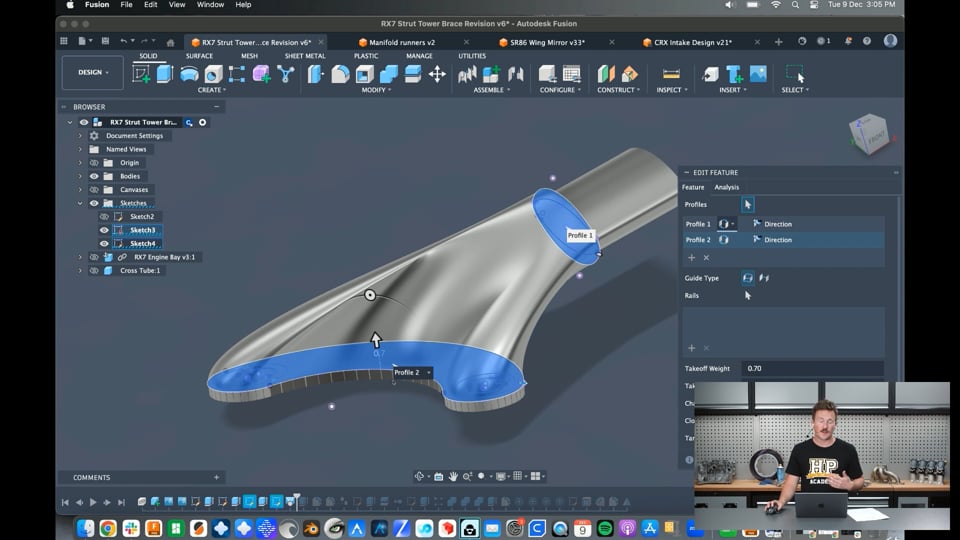
| 04:41 | So, let's have a look at where I used a loft in this design. |
| 04:45 | And I'll just roll back our history marker here to just before I used the loft tool. |
| 04:51 | And turn off the cross tube and the engine bay. |
| 04:55 | So, basically what I had was just this flat kind of mounting plate that would mount to the strut top. |
| 05:01 | And then I had this little spigot here which was going to go inside the tube. |
| 05:05 | And I think it also had some other little sketches here of kind of matching the outside of the cross tube as well, just so it would kind of create a nice transition. |
| 05:17 | And then from there, it was essentially just use the loft tool to join those together. |
| 05:22 | So, that's what I've done there. |
| 05:24 | And if I just right click and edit this, we can see exactly how it's been done. |
| 05:28 | So, this is a pretty simple one. |
| 05:30 | I select the profile up here. |
| 05:32 | And then I select the profile down there. |
| 05:34 | And that gives us our two profiles. |
| 05:36 | Doesn't really matter in this case which order they're selected in. |
| 05:40 | If we had three for example, we would want to be careful what order we select them in. |
| 05:46 | So, we go from profile 1 to 2 to 3, not 1 to 3 to 2 or something like that. |
| 05:52 | The other kind of specific part of the tool that I want to dive into a little bit here is this direction preference, what's set to direction at the moment. |
| 06:00 | It's more like the connection preference. |
| 06:02 | So, how the loft connects to that profile. |
| 06:06 | So, if I just click on that, we can see in this case we have these two options of connected and direction. |
| 06:13 | And if I go to connected, we can see that kind of just changes the shape of it really subtly there and kind of becomes a little bit rounder I guess. |
| 06:24 | But what that basically means is it's just connecting straight to that. |
| 06:29 | But if we select the direction preference, we actually just have a little bit more control over it. |
| 06:35 | I think that's just automatically changed it from the settings that I had. |
| 06:39 | No, it doesn't. |
| 06:40 | That's fine. |
| 06:40 | So, when we have this direction preference set, we can change the takeoff weight and the takeoff angle here. |
| 06:47 | So, the takeoff weight is essentially, if we're setting it as direction, we control the direction. |
| 06:53 | So, I'll start with the angle, the takeoff angle. |
| 06:56 | So, I can control the angle that it leaves that profile. |
| 07:00 | Be it 0 degrees, just leaving straight kind of perpendicular to the profile. |
| 07:05 | Or I can flare it out or I can flare it in as well. |
| 07:10 | Jump back into that. |
| 07:11 | Sorry, I just hit undo. |
| 07:13 | And then the takeoff weight is how long it holds that angle for essentially. |
| 07:19 | So, at the moment, that's set to 0.5. |
| 07:24 | I can pull it out so it holds that straight kind of shape for longer. |
| 07:28 | Or I can, can't go negative, but I can pull it back in or I can set it to like 0.1, for example. |
| 07:34 | And that just controls how long it holds that condition for. |
| 07:38 | So, that's a really powerful tool when it comes to kind of tuning the shape of this. |
| 07:44 | And it's the same thing here that I've used for the bottom profile or profile 2 where it connects to the mounting point for the strut top. |
| 07:53 | Same thing, I can drag that up and control the takeoff weight or I can also, if I wanted to, change the takeoff angle there as well to really fine tune the shape and how everything looks. |
| 08:05 | And you can see how there's almost infinite ways that you could change that. |
| 08:24 | And what kind of worked with the rest of the design as I continued to progress through it. |
| 08:31 | Sometimes it's going to become changing those to control the fluid flow. |
| 08:37 | Maybe we're designing an intake and we want to do CFD on it. |
| 08:41 | Then that becomes a powerful tuning tool for getting the fluid flow how we want it. |
| 08:46 | Maybe it's a spatial constraint thing or just a visual thing like it is here as well. |
| 08:51 | Or maybe more functional in another way as well. |
| 08:54 | So, that's an example of that. |
| 08:57 | I'll just cancel out of that. |
| 08:58 | So, you can see basically it created that loft and then kind of made some recesses for the mounting hardware and then continued on through creating that kind of hexagonal lattice structure there. |
| 09:15 | I put a little bit of geometric patterns on the spigot here, just trying out a new tool that was in Fusion to give it a little bit more adhesion, mechanical adhesion when we bonded it into the tube. |
| 09:27 | And then also added some ribbing in there to strengthen things up as well. |
| 09:34 | And that's how that final design kind of turned out there. |
| 09:40 | Again, if you want to see a bit more on that, you can check out as a worked example in the 3D printing course. |
| 09:47 | So, another example of something slightly different is the CRX intake design that we have here. |
| 09:54 | So, I'll just turn a few more things on so you can get a little bit of context here. |
| 10:00 | So, this is another 3D scan in this case of our CRX race car engine bay. |
| 10:07 | We have a front bumper there as well and I actually have the inside of the bonnet scanned as well. |
| 10:12 | So, everything in here and this project has been parked for a little while while we're working on other things, but we will come back to it. |
| 10:19 | But basically the idea here is that we're trying to make this K20 swapped EF CRX fit with the ITBs and the intake all under the bonnet. |
| 10:30 | Because previously it had a cut in the bonnet and the ITBs kind of sticking out. |
| 10:34 | We didn't like how that looked. |
| 10:35 | Probably not great for aerodynamics as well. |
| 10:37 | So, the project here was kind of to design an intake along with some other things to fit that all under the bonnet. |
| 10:47 | As you can see here with that kind of inside of the bonnet scan, it's looking pretty good so far. |
| 10:53 | And at the same time, so I'll just talk about that a little bit more. |
| 10:57 | We actually have the ITBs over here. |
| 10:59 | And you can see that these are some resin 3D printed out of a high temperature resin called frozen TR300. |
| 11:09 | And they have kind of a down sweep on them to help with that a little bit rather than coming straight out. |
| 11:16 | And the idea is we're going to experiment with a whole bunch of different lengths for these to find what makes the best power band. |
| 11:21 | And we're also experimenting a little bit. |
| 11:24 | We've got a fuel rail mounted out here and we're going to have some secondary injectors out a little bit further into the airflow for that high end power as well. |
| 11:34 | So, it'll be a cool project when we get back to it. |
| 11:38 | But the idea as well here was to design an air box to fit over top of those and also fit under the bonnet. |
| 11:47 | So, I've just kind of started fleshing this design out. |
| 11:50 | We can see here we've got this scan or model of the bumper that we're going to run as well, which I'll just hide. |
| 11:58 | And then we have this kind of crash structure that Brandon built at the front here to support the bonnet and so on. |
| 12:05 | And that has some cutouts in it here and we're going to be taking our intake air from that there. |
| 12:12 | So, the next step, just hide the scan of the engine bay and hide the air box, is we're going to run this K&N panel filter in here as our air filter and position that where we want it. |
| 12:27 | And then our air box is going to be a carbon fibre part made in two parts. |
| 12:31 | So, this works really well for a loft to design all of this. |
| 12:37 | So, I'm just going to jump into that air box component now, make that active. |
| 12:42 | And these are the features to build it. |
| 12:45 | A couple of things I want to note here. |
| 12:47 | When we're designing something like for carbon fibre parts using lofts and more kind of complex features like that with a lot of curves and stuff in them, it can be really good working with the surface modelling tools over here, which are essentially creating an infinitely thin surface that's representative of the surface of the part that we're working on. |
| 13:09 | Carbon fibre parts are panels and a lot of what they are moulded off is based on the surface shape of them and then they just have some thickness to them. |
| 13:19 | But they're very thin for kind of their surface area. |
| 13:22 | So, the surface modelling tools make a lot of sense for that. |
| 13:25 | All we have to do is model the surface, get it how we want, we have a lot more flexibility in that. |
| 13:30 | And then we can just thicken it slightly to represent the thickness of the carbon fibre part, be that by 2mm or 1.5mm or whatever the thickness of the laminate that we're going to build is. |
| 13:42 | So, that's essentially what I've done here. |
| 13:45 | But we can still use the loft and the sweep tools in our surface modelling toolbar and they basically do exactly the same thing. |
| 13:54 | They're just not creating a solid body, they're creating a surface feature. |
| 13:58 | So, essentially, if I turn the sketches on, I started with a sketch out the front here, just of the kind of inlet to it. |
| 14:08 | And then I also already had a profile on the air filter there that I could select as well. |
| 14:18 | So, that was the first part of that loft. |
| 14:21 | And then if I just jump into that, we can see how I've done it and basically see the same simple approach there, selecting profile 1, profile 2 and then playing around with the direction and tangent settings here to have a little bit more control over the shape and make that work a little bit better. |
| 14:43 | So, with the direction one, again, we can control the takeoff angle and weight. |
| 14:48 | And then this tangent one just comes off at a 90 degree. |
| 14:51 | So, it's basically the direction one at a zero angle. |
| 14:54 | It's the same thing, really. |
| 14:56 | And then we can, again, just control that. |
| 14:58 | And you can see if I drag it out too far here, it goes yellow and it fails because basically the geometry would fold over on itself and self -intercept. |
| 15:07 | So, not something we want to do. |
| 15:09 | I've just mucked that up and accidentally selected the air filter panel. |
| 15:17 | So, yeah, you can see there that's basically the same thing, just controlling those to get the shape we want. |
| 15:23 | And then it's the same for the other side, kind of marking out a bit of a back plate, something that might work on the throttle body side. |
| 15:34 | And then, again, using the loft tool and just controlling those tangency weights and so on to kind of get it shaped how we want. |
| 15:45 | It's a pretty simple approach, but the main point that I just want to drive home there is it can be really helpful then to work with surface modeling tools. |
| 15:53 | And then that's what this thicken tool is here, where we can just select thicken and then select the surface we want to thicken. |
| 16:01 | And then I've just thickened that by one millimetre there. |
| 16:04 | And then we can use that to kind of cut into some stock, for example, and design a mould straight from that in CAD, get it machined out of MDF or something or tooling board or something like that and work towards making the carbon fibre part. |
| 16:18 | But that's not the point of what we're talking about today. |
| 16:20 | So, we'll move on a little bit from here and get into looking at some more lofts and sweeps. |
| 16:26 | If you have any questions that come up during this about using lofts and sweeps, feel free to answer them and I'll do my best to answer them in the chat at the end. |
| 16:36 | Cool. |
| 16:37 | So, let's move on to the wing mirror here. |
| 16:40 | So, this is one that I'm working on at the moment for our car being the SR86, the SR20BT powered GT86 endurance race car. |
| 16:52 | And this is another carbon fibre part here, basically a GT3 style mirror. |
| 17:00 | And ignore this kind of funny mount, it is going to change from this design. |
| 17:04 | This is just something that was 3D printed and I put two stays on it to give it a little bit more stiffness. |
| 17:09 | Out of plastic and the idea in the end is we'll 3D print this out of aluminium probably as well. |
| 17:16 | But make this carbon fibre headlight, sorry, wing mirror bucket. |
| 17:21 | And that will just have a kind of generic off the shelf mirror panel that is just glued into the back of it. |
| 17:28 | And then you can make the adjustments, kind of swivel it around from the bottom here. |
| 17:33 | And it'll be symmetric so it can just be flipped over each side and we only need one mould. |
| 17:38 | We're actually going to make that out of prepreg carbon as well for those who are interested. |
| 17:43 | But same thing here, if I just roll the history marker, timeline marker back to here. |
| 17:50 | We can see that this shell was created with a loft. |
| 17:54 | So, I've basically created two sketches here. |
| 18:00 | And then one based off where the mirror would be, the glass. |
| 18:04 | And then same thing, I've used a surface loft to create that and worked with the tangency weights again. |
| 18:16 | So, again, it's just another example of making a slightly different part using a loft. |
| 18:21 | We've talked enough about lofts, tangency, take off angles and so on. |
| 18:26 | So, let's just move on to another example here. |
| 18:29 | If you're interested as well, this was the 3D printed SA86 wing mirror there just as a bit of a prototype. |
| 18:37 | And hopefully in the new year we'll probably be making those out of prepreg carbon fibre. |
| 18:43 | Oh, by the way, this is also the RX-7 strut tower brace. |
| 18:47 | I forgot to show that before, the one that's actually on the car. |
| 18:50 | So, pretty cool looking piece, kind of fits really well in there. |
| 18:56 | So, now we have another example. |
| 18:59 | And this is an example of where we could use a loft or a sweep, depending on exactly what we're trying to do. |
| 19:05 | This is actually something from the, I've covered in a webinar before as well, but something from our 3D scanning course. |
| 19:13 | And it's based off this manifold here, which is often Evo, I think, for a stock position turbo, I think, again. |
| 19:23 | And we basically did some 3D scanning of this and then used some scan to CAD software to do some reverse engineering work on it. |
| 19:34 | To basically recreate it as maybe a slightly different design that would be able to be 3D printed or cast, for example, rather than a fabricated one like this. |
| 19:47 | But it's a cool piece anyway. |
| 19:48 | So, again, here in this case, how it's modelled at the moment, and it's only partially modelled, I've used the loft tool and I've used surface modelling as well. |
| 20:03 | So, if I just hide those bodies, you can see what I've got here is a sketch with the port on the flanges projected. |
| 20:14 | And then this was covered in another webinar, by the way, on 3D sketching or actually modelling exhaust manifold runners. |
| 20:24 | So, if you want to have a look back at exactly how we did this, I'd recommend checking that out. |
| 20:29 | But then we did these 3D sketches here, essentially using 3D splines. |
| 20:38 | So, under this 3D sketch preference down here. |
| 20:42 | And we've made these splines so they kind of come off perpendicular to the ports, swerve around and then go back into these other ports here. |
| 20:52 | So, I have, essentially in this case, I'm just going to chuck another few things in here. |
| 21:01 | I'll just chuck some circles on. |
| 21:05 | I have a few options. |
| 21:07 | If I use the circular profile, I could sweep that circular profile along the path that I've got. |
| 21:13 | Or if I use the loft one, I can do a loft from this port shape into this port shape up here, for example. |
| 21:23 | So, I'll show you both of those. |
| 21:28 | Yeah, we'll just run with it from here. |
| 21:30 | So, if I go to the surface modelling tool, I can go here and I'll start with the loft, for example. |
| 21:36 | And what I can do, select chain selection there and select that profile. |
| 21:43 | And then I'll select this profile up here. |
| 21:49 | I'll show those bodies so we can see what we're actually doing. |
| 21:54 | Bear with me. |
| 22:01 | Okay. |
| 22:01 | Yeah, so there we can see what the loft tool does without giving it any extra inputs. |
| 22:07 | It's just blending one profile to the other. |
| 22:09 | And like we did before, we could change these to kind of direction and get a little bit more control over them there. |
| 22:15 | But it's never really going to work exactly how we want it to for this. |
| 22:20 | So, what we do in this case is we move on to kind of the next step of using the loft tool and that's to use these guides. |
| 22:27 | We can do guide rails, which would be basically on the outside of the surface, down the edges of what it's going to create. |
| 22:33 | Or we can just do a center line in this case. |
| 22:37 | Guide rails can work great in some situations. |
| 22:40 | I find the center line usually is a little bit easier to use. |
| 22:43 | So, now I just select the center line, which is that trajectory there. |
| 22:47 | And then that just guides that loft as it's changing from profile one to profile two by that center line. |
| 22:55 | So, that's basically as simple as it gets for that. |
| 23:00 | And that should make some sense. |
| 23:03 | The other alternative there, if we weren't going to do a loft, is to do a sweep and we can do essentially the same thing there. |
| 23:11 | With the sweep tool, we're going profile and we'll just select that circle, for example. |
| 23:18 | And then the path is just going to be that center line there as well. |
| 23:22 | And it's not happy with it for some reason. |
| 23:29 | I think it's because of how that profile kind of turns back on itself. |
| 23:34 | Let's just try it with the one next to it. |
| 23:37 | So, we'll just throw a circle on here. |
| 23:46 | Bear with me and then we'll jump back into the sweep tool. |
| 23:52 | We'll sweep that profile along this path and it's still not going to work. |
| 23:58 | Chain selection. |
| 23:59 | I see what's happening. |
| 24:00 | Bear with me. |
| 24:00 | So, chain selection is still selected. |
| 24:03 | I just want to select that as the profile there. |
| 24:07 | Object we're creating is not visible. |
| 24:09 | Make it visible. |
| 24:11 | Turn off the other stuff. |
| 24:13 | And we can see what that's done. |
| 24:15 | There, it's just a little bit of a different approach using the sweep tool. |
| 24:19 | And it's just going to create a perfectly circular profile along that path rather than changing from one port to the other port shape. |
| 24:30 | Which obviously isn't something that we can just fabricate with tubes. |
| 24:33 | So, that's where we'd use this as an example over the other one. |
| 24:37 | We can control this a little bit more if we wanted to. |
| 24:43 | Obviously, that's not going to work in this case. |
| 24:45 | But some cases you can change that orientation to parallel. |
| 24:49 | So, the profile just kind of stays parallel as it moves to the original profile plane as it moves along that path. |
| 24:55 | Or perpendicular which is usually more what we want where it'll stay perpendicular to the path as it moves along it. |
| 25:02 | We can taper it as well by say 5 degrees. |
| 25:08 | That makes it quite a lot bigger. |
| 25:11 | So, that's just kind of expanding it as it goes. |
| 25:14 | Or we can kind of reduce it down as well. |
| 25:17 | Oh, didn't like that. |
| 25:18 | Negative 2 for example. |
| 25:21 | So, it gets smaller. |
| 25:23 | And then we can also twist it which isn't going to show us much because in this case it's circular so you're not going to see the twist. |
| 25:30 | But we could twist it around by 10 degrees or so. |
| 25:33 | But again, you're just not going to see that in this example. |
| 25:36 | So, I hope that gives you a little bit more insight into the options when it comes to modifying the kind of loft and sweep features a little bit more than just what the basic settings give you. |
| 25:49 | And I usually find that there's quite a few ways that I can use these in my designs when I'm working on things. |
| 25:55 | And then tweak them a little bit more to get closer to exactly what I want. |
| 25:59 | It can always be a little bit tricky if you have something in your head or you want it to flow perfectly to get it exactly how you want it in your CAD software. |
| 26:07 | So, with that covered, I'll just jump into the questions, see if there's anything and do my best to answer them. |
| 26:20 | This is great. |
| 26:20 | Is there a feature like that in SOLIDWORKS 24? So, yes, sweeps and lofts are in pretty much every CAD software that I've ever seen. |
| 26:30 | They work exactly the same in selecting the profiles for the sweep tool, the trajectory as well. |
| 26:37 | I'm not 100% sure in SOLIDWORKS if you can use like guide rails or it's as simple as this, but I imagine it probably would be. |
| 26:46 | I use SOLIDWORKS a lot before I use Fusion and yeah, sweeps and lofts are exactly the same. |
| 26:52 | So, I'd imagine definitely there would be. |
| 26:56 | That looks like all there is for questions. |
| 26:59 | So, I'll wrap it up there, keep it short. |
| 27:02 | Again, hopefully that's given you a little bit more insight into how to use those tools and get a little bit more out of them for your projects. |
| 27:09 | So, thanks for coming and we'll see you next week with another webinar. |
00:00 - Introduction to Advanced Sweeps & Lofts in CAD
00:27 - Understanding Sweep Tool: Profile & Path
01:16 - Understanding Loft Tool: Transitional Shapes
02:20 - Differences Between Sweeps & Lofts
02:40 - Use Cases: Plumbing Systems & Solid Parts
03:12 - Example 1: RX-7 3D Printed Strut Tower Brace
04:45 - Loft Application: Creating Mount Transitions
06:00 - Direction Preference: Connected vs. Direction
07:36 - Takeoff Angle & Takeoff Weight Controls
10:00 - Adding Guide Rails for Better Control
11:58 - Example 2: Carbon Fiber Air Box Design
13:43 - Surface Modeling vs. Solid Modeling for Carbon Parts
15:36 - Using Surface Loft Tool
17:33 - Thicken Tool for Surface to Solid Conversion
18:26 - Example 3: GT3 Style Wing Mirror Design
19:34 - Creating Mirror Shell with Surface Loft
21:00 - Example 4: Intake Manifold Runner Design
23:00 - Using Sweep Tool for Plumbing Applications
25:00 - Sweep Orientation: Parallel vs. Perpendicular