403 | How to work with 3D Sketches in CAD
Summary
3D sketches are a powerful modelling tool that allow us to quickly model tubular structures, have precise control of lofts and sweeps, and much more. As you'd imagine, they are a bit more complicated to create compared to 2D sketches. Fortunately, once you understand the basics it's very straight forward. In this webinar we'll cover the fundamentals of creating 3D sketches in Fusion and the various areas we can use them in motorsport design.
| 00:00 | Hey team, Connor here from HPA. |
| 00:01 | Welcome to another one of our webinars. |
| 00:03 | This week, we're going to be revisiting a CAD topic on 3D sketches. |
| 00:08 | So, we're going to talk about first what they are and where we can use them when we're working on our project cars. |
| 00:15 | We'll do a couple of demos and I'll show you some of the kind of common tools and the key tools and the ways that we use them. |
| 00:22 | And then we'll have a talk about some of the common areas that people go wrong as well. |
| 00:27 | And I've also got a laptop set up here with SOLIDWORKS. |
| 00:30 | So, we're going to do it all in Fusion initially, and then I'll just show you the kind of equivalent way in SOLIDWORKS as well. |
| 00:36 | So, we'll get straight into it and talk about sketches. |
| 00:41 | I'm just going to jump over to my laptop screen here and we'll run through it. |
| 00:46 | So, our little sketch icons up here, create sketch. |
| 00:51 | Sketches are really commonly used in our CAD design, our 3D modeling, 2D or 3D. |
| 00:58 | Basically, we use them to create profiles and paths in some cases, as well as profiles that we can then build 3D or 2D features from. |
| 01:08 | We can also use them to create things like datum planes or axes and things like that, build points up in space. |
| 01:16 | And that can be really handy when it comes to modeling. |
| 01:20 | Parts, but also creating assemblies between multiple parts as well. |
| 01:26 | Typically, a sketch, if we click the sketch, we're prompted to select a plane and naturally, we're going to sketch on that plane. |
| 01:35 | And typically, again, the sketch will be kind of confined to that plane. |
| 01:39 | So, it'll be a 2D sketch. |
| 01:41 | However,, all 2D sketches can become 3D sketches if we just move features into 3D. |
| 01:49 | And there's a few different ways that we can do this, but I'll get into those in just a moment. |
| 01:54 | Let's first just talk about some typical use cases for 3D sketches when it comes to designing car parts. |
| 02:00 | These are like the typical areas that I use them in, really common ones, but there's also a whole lot of different ways you can use them as your things get more advanced. |
| 02:09 | So, a really typical one is creating weldments or, you know, assemblies of welded parts together. |
| 02:16 | Things like tubular structures there. |
| 02:18 | So, we're talking roll cages and tubular subframes and things like that as well. |
| 02:25 | When we sketch out a whole bunch of members in 3D space and then use that to create them. |
| 02:29 | And we'll do an example on just that. |
| 02:31 | The other way that we use, I typically use it as when guiding the shape of loft and sweep features. |
| 02:39 | So, if you're not familiar with CAD, under our Create toolbar under here, we have sweeps and lofts. |
| 02:44 | And that's a pretty standard, those two tools across most CAD software and really well suited to things like plumbing and that, and automotive parts, but also a whole bunch of more mechanical parts as well. |
| 03:00 | So, we can use 3D sketches to guide the shape of them. |
| 03:04 | In Fusion, we commonly do that using guide rails or guide center lines, but other CAD programs have slightly different ones. |
| 03:12 | And again, we use that when we're looking at guiding the shape of intake runners or exhaust runners on manifolds. |
| 03:19 | But yeah, there's a whole lot of different ways we can use it. |
| 03:22 | Again, we'll look at that in just a moment. |
| 03:24 | If any questions come up during this related to CAD or any topics like that, feel free to ask them and I'll do my best to answer them at the end. |
| 03:33 | So, with that in mind, we're just going to start off here. |
| 03:37 | Let me just undo that. |
| 03:38 | And we're going to look at just mapping out a very basic kind of setup for a roll cage. |
| 03:44 | This is actually an example that I had in our 3D modeling course. |
| 03:50 | And I've seen a few questions come up around 3D sketching on the forum recently with a bit of misunderstanding about it. |
| 03:58 | So, I thought I'd touch on it a little bit more here and hopefully do it a little bit more justice as well. |
| 04:03 | So, we're going to start off with basically a 2D sketch. |
| 04:08 | So, I'm going to select the sketch tool and I'm just going to sketch on this front plane here. |
| 04:14 | And you can see down here in the sketch palette, I've got 3D sketch turned off at the moment. |
| 04:19 | And we're just going to work with a basic 2D sketch. |
| 04:22 | So, what I'm going to do is select the line tool, zoom out a little bit, and I'm just going to map out here with the line tool. |
| 04:31 | And then if I click and drag on the end point, I can make a tangent arc off that and then go straight down there. |
| 04:37 | What I'm going to do is just map out half of the main hoop. |
| 04:41 | So, if you split the car down the center line, I'm just going to do half of it in this case because it just saved me a little bit of time. |
| 04:48 | And then we could always just mirror it over to the other side, assuming our car is symmetric, which sometimes they're not. |
| 04:55 | So, what I'm going to do, just tangent constraint between this arc here, that vertical line, get all that flowing nice and smoothly. |
| 05:04 | Actually, probably in this case, I'm just going to take that one off. |
| 05:09 | We probably have something. |
| 05:11 | I'm just going to change it a little bit. |
| 05:15 | So, grab that tool again, probably have something more like that as it kind of comes down the B pillar and then another line here. |
| 05:23 | And of course, we can't get a straight bend like that in our tubing. |
| 05:28 | So, we're going to have a radius there. |
| 05:30 | I'll leave that just like that for a moment and add some dimensions in. |
| 05:35 | So, I'm not sure. |
| 05:36 | I'm just kind of making this up as I go. |
| 05:37 | But we'll talk about, we'll just map out some rough dimensions in space to get it kind of roughly where I think. |
| 05:44 | So, I think if we talked about the ground level of the car up to the roof, most cars are going to be about a meter. |
| 05:50 | So, a thousand mils. |
| 05:52 | And then if we think about the width, it's probably a little bit more, but this is only going to be half of that. |
| 06:00 | Let's just go a thousand again. |
| 06:03 | I'm going to throw some constraints in here just to build this out. |
| 06:06 | So, I'll do a vertical one between that and that. |
| 06:09 | Horizontal one there. |
| 06:13 | And just undo that. |
| 06:17 | And then throw a few tangent constraints in here as well. |
| 06:23 | And I'm just going to have this kind of bit angle in. |
| 06:29 | 150 mils. |
| 06:33 | Maybe a little bit more. |
| 06:34 | Let's go like 300. |
| 06:37 | And the radius, this is going to be the radius of our tube. |
| 06:41 | So, centerline bend radius, I think would be six inches on the tooling that we have anyway. |
| 06:49 | If I delete that one there, I can quickly make this equal here. |
| 06:53 | I'm just whizzing through all of this pretty quickly just to kind of map out this 2D sketch because it's just really not the focus of what we're looking at today. |
| 07:04 | So, I don't know, something like that could be, you know, if we mirrored that, could be our main hoop. |
| 07:12 | I know it's probably not super accurate, but that's, again, not the intention here. |
| 07:18 | So, that's a 2D sketch. |
| 07:19 | If I just show that again and I'll show our origin, we can see that sketch just exists in 2D on that front plane there. |
| 07:28 | So, what I'm going to do is I'm going to jump back into it and I'm going to change it a little bit and add some features and bring it into 3D. |
| 07:36 | So, as you'd imagine, I'm going to click this 3D sketch preference in the sketch palette down here. |
| 07:42 | And then what we see is when we select one of these tools, you can already see it a little bit on our origin here, but I'm going to select this point. |
| 07:51 | We can see we have this other little origin show up and that has three separate planes on it. |
| 07:59 | And what that allows us to do is change the active plane that we're working on. |
| 08:05 | So, at the moment, it's still on this front plane. |
| 08:08 | So, if I drag this line anywhere around here, it's just going to stay on that front plane. |
| 08:13 | I could change it to this one here. |
| 08:16 | That would kind of work pretty well as well. |
| 08:20 | Or I could go on this top plane. |
| 08:22 | And if you wanted to, you could also change the angles of those to get a little bit more control over it as well. |
| 08:28 | What I'm going to do is I'm going to sketch on, you know, this top plane here. |
| 08:32 | And I'm just going to drag out. |
| 08:35 | And this is actually going to be a construction line and drag that out. |
| 08:39 | So, now we've got that in 3D. |
| 08:43 | I'm just going to make that a construction line. |
| 08:47 | Select that, make it construction, just because we're not actually going to use it to create any tubes. |
| 08:52 | We're just using it to, I guess, create the sketch for the tubes instead. |
| 08:57 | So, I'm just going to map that out. |
| 09:00 | And we can see that's already got this horizontal constraint on it. |
| 09:03 | And basically our horizontal and vertical constraint here just snap them to inline with our coordinate system based on whatever it's closest to already. |
| 09:16 | So, yeah, that's automatically put a horizontal one because I dragged it out kind of straight there. |
| 09:22 | And I can just dimension that as well. |
| 09:24 | I don't know, let's say something like 1,500 or 1,200 or something there. |
| 09:30 | So, next, what I'm going to do is I'm going to sketch a pillar bar to just come up behind the dash here. |
| 09:37 | Go back with the A pillar, run along the roof line to the center point here. |
| 09:43 | And again, I'm just kind of making this up of what a typical kind of roll cage would look like to illustrate these points. |
| 09:49 | So, we can see now we're already in 3D. |
| 09:53 | And the same kind of thing applies here. |
| 09:56 | If I click on this point and I just want to draw a line straight up here, kind of in front of the door, I can do it on this plane or on this plane here. |
| 10:07 | Either one's going to work fine. |
| 10:09 | We can see that snapping to vertical there. |
| 10:12 | So, that's looking pretty good. |
| 10:14 | So, I'll just select that point and then I'm going to stay on that plane here. |
| 10:19 | And I can bring that point up there too. |
| 10:21 | What I'm going to do is just start off by dimensioning that. |
| 10:25 | Yeah, let's say it's 500 high. |
| 10:27 | And then we can see how this line is still kind of going vertical. |
| 10:32 | And I'm just going to use this to illustrate another point. |
| 10:35 | So, what we can use is a move copy tool here. |
| 10:38 | And this is another thing we can do in 3D sketches. |
| 10:41 | And we can select the end point here. |
| 10:44 | And what I just want to note is that this kind of origin or coordinate system for using the move copy tool, don't confuse that for that 3D sketch origin that shows up. |
| 10:59 | This is not changing the active plane that we're working on. |
| 11:02 | These are just kind of like handles to move that point around. |
| 11:08 | So, we can see now we can move it off that active plane and kind of into other areas and move it along. |
| 11:15 | So, it's another way to move your sketch points around that can be really handy. |
| 11:20 | But just don't confuse these planes here for changing the active plane that you're sketching on. |
| 11:27 | So, that's not really defining anything anyway. |
| 11:31 | But what we're going to do is we're just going to do another line from that. |
| 11:35 | And then something else I want to note here, I'm not going to change the active plane here to sketch a line over to this midpoint. |
| 11:43 | Because I can actually just kind of drag the sketch around and it'll find those points even without the sketch preference noted there, selected. |
| 11:53 | And it'll find points to connect to and kind of profiles that are in the way of where I'm dragging. |
| 12:00 | So, that's just something to note when you're working in 3D sketches and you're placing points, even though you think you might be placing it on a plane here. |
| 12:10 | If you line up with something in the background, it'll actually snap back to that and kind of move out of the plane that you might think you're working in. |
| 12:17 | In this case, it's going to be kind of ideal. |
| 12:20 | So, we can see that little triangle there is actually the midpoint of that arc. |
| 12:26 | So, I'm just going to land it on that midpoint. |
| 12:29 | That'll be good. |
| 12:29 | And then use the horizontal constraint here. |
| 12:34 | Just click that and that's going to line that up with that axis. |
| 12:37 | So, we see that comes straight forward along the kind of roof line and then it's dropping down to that point there. |
| 12:44 | And if I throw a dimension on that... |
| 12:48 | Yeah, I don't know, 750 looks pretty good. |
| 12:52 | Then that's looking pretty good. |
| 12:55 | And we can see that sketch come into 3D there. |
| 12:58 | Move off that active plane. |
| 13:00 | And again, just going to put some fillets on here. |
| 13:03 | Six inches for that centerline bend radius. |
| 13:08 | And that looks pretty good. |
| 13:10 | So, what I've got there is a 3D sketch that I can quickly finish up. |
| 13:15 | And then I can jump into the pipe tool here. |
| 13:19 | And I can, with the chain selection selected, I can select that back profile. |
| 13:27 | Circular hollow section for the pipe tool. |
| 13:30 | And just set that to whatever roll cage tubing we're using. |
| 13:34 | So, 44.5 for working in peri units. |
| 13:38 | Three mils thick is a pretty common tube. |
| 13:40 | New body. |
| 13:42 | Select that and we can see we've got half of that. |
| 13:46 | And then come back and turn that sketch back on again. |
| 13:49 | Same thing here, pipe. |
| 13:52 | I don't want that to cut, just want another body. |
| 13:56 | And select OK. |
| 13:57 | So, now I have those two bodies and I can also mirror both of them through the center plane. |
| 14:06 | Kind of create the other side of it. |
| 14:08 | And start really mapping out this roll cage. |
| 14:10 | You can see now that it's clearly much too wide for the car. |
| 14:13 | But you never know what you're working on. |
| 14:15 | Maybe it's a truck or something. |
| 14:17 | So, yeah, that kind of gives you a bit of an idea. |
| 14:20 | We can work through that with notching these tubes. |
| 14:22 | I've done webinars showing that before. |
| 14:24 | Be able to create step files for CNC notching and bending and so on. |
| 14:29 | But that's the idea behind 3D sketching for something like that. |
| 14:32 | The basics anyway and just moving points around in 3D space. |
| 14:38 | And you can also, this is a really common one. |
| 14:40 | If we've got a 3D scan of the interior of a car, we can kind of build out a roll cage design like that. |
| 14:46 | And then, like I said, get it CNC notched and bent. |
| 14:49 | And kind of get a tube cage kit of our own to be able to weld together. |
| 14:56 | So, we'll move on from that. |
| 14:58 | And I'll just show you a slightly different approach to a 3D sketch here. |
| 15:02 | Again, if you have any questions come up, just feel free to ask. |
| 15:06 | And I'll do my best to answer at the end. |
| 15:08 | So, this is one that we've looked at before. |
| 15:10 | Another example we've looked at before. |
| 15:12 | These two flanges here are actually done in our 3D scanning course. |
| 15:17 | And we took a 3D scan of this turbo manifold here for Mitsubishi Evo 4G63. |
| 15:26 | And then we basically used that scan to create these flanges in 3D space. |
| 15:31 | I'm not sure if I actually... |
| 15:32 | Oh, yep, I do have the scan in there as well. |
| 15:35 | So, you can kind of see how that all looks. |
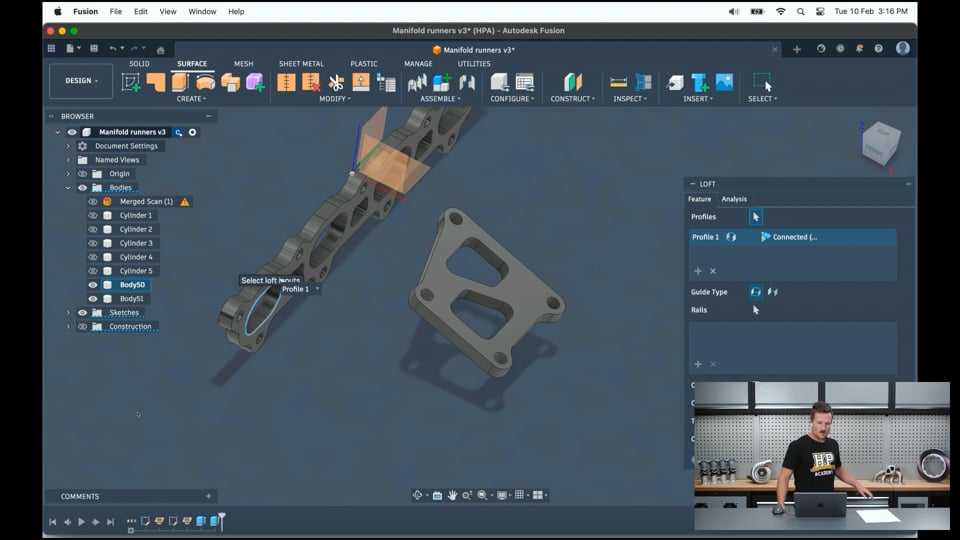
| 15:38 | But what I'm going to do is just show you, if we'd modelled these two flanges, you know, place the turbo where we want and got the engine where we want for that head manifold flange, we'd be able to model the exhaust runners here. |
| 15:51 | And then that could be something that we just do to plan out a fabricated manifold. |
| 15:55 | It might be something if we want to get cast or even 3D printed. |
| 16:00 | There's all sorts of ways we can do this and use our CAD to design it. |
| 16:03 | Maybe we do some analysis and so on. |
| 16:05 | That's beside the point. |
| 16:06 | Again, what we're going to do here is we're going to create a loft from this port or from any of the ports into one of the ports for the turbo flange. |
| 16:19 | And rather than... I guess I'll show you what we could do without the guide rail is we could create a loft. |
| 16:28 | I'll just do it as a surface one. |
| 16:30 | Create a loft from this port, chain selection on. |
| 16:36 | And then what one does that one go to? That would be this one comes into this back port here. |
| 16:45 | So, be like that. |
| 16:48 | So, we can see that creates a straight line across and we can change these to be tangent. |
| 16:54 | And it gets pretty unhappy quite quickly. |
| 16:57 | There's all sorts we could do here, maybe to help try to save it. |
| 17:01 | But you can see we don't have much control over what's happening, to be honest. |
| 17:07 | So,, yeah, it gets a little bit tricky to kind of get what we want. |
| 17:11 | So, this is where our 3D sketch is going to come in to hopefully save the day and kind of fix it all. |
| 17:17 | So, again, what I'm going to do is I'm going to start off by just sketching on the face of the flange here. |
| 17:22 | I'll turn off the 3D sketch preference for now, because what we're going to do is I'm just going to project that face to kind of get all the profiles. |
| 17:33 | I realize I kind of skipped ahead there a little bit, but the project tool under here, project include is a really good way to just project features onto our active sketch plane. |
| 17:44 | And this is going to be an important concept that I talk about in just a moment. |
| 17:48 | So, what I'm going to do, again, project that, and then I'll just create a little construction line between these two points. |
| 17:58 | And then that's going to allow us to find the center. |
| 18:01 | We could do that now even with a point, the center point of that port, because that's where our 3D sketch of our guide center line is going to go to. |
| 18:12 | Now,, I want to do the same thing for this port over here, but what you'll see is if I click the project tool, all that's going to do is basically project those lines onto our active sketch plane over here. |
| 18:28 | You can kind of see them appearing as these construction lines. |
| 18:33 | That's not really what I want. |
| 18:35 | I've just taken the construction line preference off, but I don't want them on that line. |
| 18:40 | So, what I want to be able to do is find the center point of this port here, but in 3D space compared to our 3D sketch. |
| 18:52 | So, if I go under the same tab in the create thing under project include, and I find this include 3D geometry, that is essentially projecting that point or including it, but also keeping it in 3D space. |
| 19:07 | So, you can see now if I select it, those little purple lines come up, and I'll, from that, be able to kind of do a basic construction line sketch between the kind of mid lines there. |
| 19:29 | And I'm just going to do that one actually as is, and that'll give us kind of a nice rough anyway center line for that port. |
| 19:39 | Cool. |
| 19:40 | So, now I have some points in 3D, and I'm going to turn the 3D sketch on. |
| 19:46 | And what I'm going to do is use the spline tool. |
| 19:50 | And I'm just going to select that point, and then this one here. |
| 19:58 | I'm just going to do this again, not in construction mode. |
| 20:00 | Spline, select the center point. |
| 20:03 | You can see it snapped to that point with the little green square. |
| 20:06 | Same thing there. |
| 20:08 | And I'll just finish that up. |
| 20:10 | And then what I'm going to do is add in some more little construction lines here just to help us kind of square everything up. |
| 20:23 | So, just some other little kind of perpendicular lines. |
| 20:32 | So,mething like that. |
| 20:34 | Oh, that's not what I wanted. |
| 20:36 | Bear with me. |
| 20:38 | I will do a line across here. |
| 20:43 | Delete that point. |
| 20:49 | Really making a mess of this. |
| 20:51 | Just a moment. |
| 20:52 | Get that line back in there. |
| 20:56 | Okay. |
| 20:57 | And I'll just plop that back on there and there. |
| 21:01 | Cool. |
| 21:02 | All right. |
| 21:03 | Now, what I can do is at the end of our spline, we have these handles here in green. |
| 21:13 | And that allows us to kind of, if it lets me select it, drag that and pull and kind of change the tangency weight and the angle that that spline kind of takes off from. |
| 21:23 | And what I like to do is use the perpendicular constraint and set those handles perpendicular to those two kind of center lines for the port. |
| 21:34 | So, we know it comes straight out there at a right angle. |
| 21:39 | And then basically I'm going to do the same thing over here. |
| 21:44 | Perpendicular of that and that one. |
| 21:46 | And we can see that spline comes out there nice and straight out of the port. |
| 21:52 | So, now what we can do is finish that off. |
| 21:56 | That's our 3D sketch. |
| 21:57 | Jump back into here, use the loft tool, chain selection, select that port, profile one, profile two, just as we did before. |
| 22:10 | And then now under this guide type, we're going to use guide center line rather than rails. |
| 22:14 | Rails are essentially just like a guide, but it's on the edge of the profile rather than through the center. |
| 22:20 | And then the center line, I'm going to select that. |
| 22:23 | And we can see now that we've used our 3D sketch to guide the shape of that loft. |
| 22:31 | We could do kind of the same thing obviously with a sweep. |
| 22:35 | That would be very similar to like the roll cage example we just did before. |
| 22:39 | Sweeping a single profile along a path. |
| 22:44 | And we can go OK there and we can see how that's kind of created that loft of that runner. |
| 22:51 | And we could jump back into the sketch there and we could dimension this or just kind of drag those out and use that to control the shape of it. |
| 23:01 | We could also, if we really wanted to get a little bit kind of more control over it, if we right click that loft, we can insert spline fit point and just kind of insert one there. |
| 23:15 | And then that gives us another kind of control point that we could use and another handle on it that we can use to change it even more. |
| 23:22 | And at some point that's going to get unhappy because it'll start to self-intersect as it did there. |
| 23:28 | So, just pull that back a little bit. |
| 23:33 | That should be OK, I hope. |
| 23:35 | Yeah,, and it's happy there. |
| 23:37 | So, once we have all our runners in there, we can drag them around and kind of get the profile sorted to exactly what we want using that 3D sketch of the spline tool there. |
| 23:48 | So, the key point to remember from that when we're doing that 3D sketch is to use that include 3D geometry. |
| 23:55 | And that's a really handy way to pick up on a feature that's off the active plane and then start to work in 3D to use that. |
| 24:04 | Cool, so that's going to wrap up my kind of demonstration in Fusion. |
| 24:09 | I'm going to jump into SOLIDWORKS now and just kind of show you how creating a 3D sketches is very similar. |
| 24:16 | We'll just look at the kind of roll cage example again. |
| 24:19 | So, just pop this over here. |
| 24:22 | And again, if you have any questions come up while I'm working, feel free to ask them. |
| 24:30 | I'm all tangled up here. |
| 24:36 | Yeah,, if you just give us a couple of minutes, we're just going to get this laptop running on the screen sharing mode so you'll be able to see it. |
| 24:45 | Just give us one moment. |
| 25:11 | Cool, so we should be set up all in SOLIDWORKS now. |
| 25:14 | And we'll just jump straight back into the same kind of thing. |
| 25:18 | So, rather than create just a normal sketch and then pick a plane here, what we're going to do, exit out of that, is just change how we get started. |
| 25:28 | And we're going to click 3D sketch here. |
| 25:31 | So, that's not selected an active plane for us. |
| 25:35 | And we're just going to kind of start sketching from here. |
| 25:39 | So, if I select a tool here, you can see a little bit of difference here as we have these kind of extended arrows here. |
| 25:49 | And what that's doing is showing us which plane is active. |
| 25:53 | And I can toggle between those active planes by hitting the tab key on my keyboard. |
| 25:58 | We can see that's now gone and the little underneath our cursor here says ZX plane. |
| 26:04 | Or we got XY plane. |
| 26:06 | It's that kind of top plane or YZ plane as the front plane. |
| 26:10 | Depends obviously what orientation you've got set up. |
| 26:13 | I like to have my Z axis vertical for CAM work and like CNC machining stuff. |
| 26:20 | That's kind of just a typical setup to have. |
| 26:22 | So, now we can see we're kind of working on that front plane. |
| 26:27 | And I'll just do basically the same work and map out that kind of roll cage again. |
| 26:32 | And you'll be able to see the very slight differences in how we do that in another program. |
| 26:38 | But hopefully this will illustrate a point that if you know how to do it in one program, you can figure it out in all of them. |
| 26:43 | What we could do also here is just view this from the front. |
| 26:49 | Make it a little bit easier. |
| 26:50 | Sketch there. |
| 26:52 | Do that. |
| 26:55 | Cool. |
| 26:56 | And smart dimension between those points. |
| 27:00 | Can't remember what I did before. |
| 27:02 | I think it was just about a meter. |
| 27:07 | Do the same thing here. |
| 27:11 | Meter. |
| 27:13 | And I think this point was about... |
| 27:15 | God, I can't remember. |
| 27:16 | 300 and something like that. |
| 27:19 | And then we'll just say this is maybe 500 tall. |
| 27:23 | And then the next thing we want to do is add the equivalent of constraints and fusion. |
| 27:29 | So, in SOLIDWORKS, this is going to be called relations here. |
| 27:34 | What we can do is if we just select that point and then the origin. |
| 27:39 | I think we need to hold shift to do that. |
| 27:42 | Then it comes up to add relations under here. |
| 27:45 | And we're going to... |
| 27:47 | The bold one here is kind of what it's recommending because that's almost there. |
| 27:52 | So, along Z would just be, in this case, vertical. |
| 27:55 | So, along the Z axis. |
| 27:57 | So, we're going to select those. |
| 27:59 | We can see that lock those in. |
| 28:01 | And then same thing here. |
| 28:03 | Select those two points along Y. |
| 28:06 | It's giving us for that. |
| 28:07 | And we can see that's gone black. |
| 28:09 | So, now that is fully constrained. |
| 28:11 | And what I'll do as well is just add some fillets in. |
| 28:15 | Sketch fillet. |
| 28:16 | Select. |
| 28:17 | Oh, select. |
| 28:19 | Entities to fillet. |
| 28:21 | Oh, I've got the corner selected. |
| 28:23 | Sorry. |
| 28:25 | Those two lines. |
| 28:27 | And it's trying to say 10 mil. |
| 28:29 | So, I don't know if this will let me do it in a different unit. |
| 28:36 | Yep, it did. |
| 28:37 | Six inches there and there too. |
| 28:41 | So, now we've done that fillet. |
| 28:43 | So, that's kind of exactly that same 2D sketch as before of the main hoop. |
| 28:49 | And then we can select the line tool here. |
| 28:52 | I'm going to do a construction line. |
| 28:54 | Select this point. |
| 28:56 | And then tab to change the plane we're working on. |
| 29:00 | Drag that out here. |
| 29:02 | Press escape to exit out of it. |
| 29:05 | Select that line and go along X. |
| 29:08 | Now, just to make that horizontal. |
| 29:12 | And I'll dimension that as well. |
| 29:14 | I think we did 1500. |
| 29:16 | No, 1200. |
| 29:18 | Something like that. |
| 29:20 | Same thing here. |
| 29:22 | Tab to change the active plane. |
| 29:24 | That one will work. |
| 29:25 | Or that one to come up vertically. |
| 29:31 | Set that 500. |
| 29:38 | Tab, change the active plane. |
| 29:41 | Oh, what's it giving me here? An arc for some reason. |
| 29:47 | Select that end point. |
| 29:50 | Jump on this plane here. |
| 29:52 | And then I can do the same thing as before as well. |
| 29:55 | And just kind of drag this last one over to the midpoint of that line. |
| 30:01 | So,, if I select these two points. |
| 30:03 | You can make that on the midpoint. |
| 30:07 | If it lets me. |
| 30:08 | No, it won't. |
| 30:13 | It's fine. |
| 30:13 | We'll just leave it for now. |
| 30:15 | Make this one here along the X axis. |
| 30:22 | Just dimension that. |
| 30:23 | Say 500. |
| 30:25 | Nope, that's too short. |
| 30:28 | However, you want to kind of map it out. |
| 30:35 | And 6-inch centerline radius there again. |
| 30:39 | And that's our 3D sketch done. |
| 30:41 | And you can see it's kind of a very similar process anyway. |
| 30:46 | And then from here, we can just finish the sketch of this. |
| 30:51 | So, we've got that sketch now. |
| 30:53 | And then go to Features. |
| 30:55 | There's no pipe tool specifically in this. |
| 30:58 | But the pipe tool is basically just a simplified version of a sweep tool. |
| 31:03 | Sweeping a profile along a path. |
| 31:04 | And then rather than using a sketch profile, we can just change it to a circular profile. |
| 31:10 | Make this 44.5 thin feature. |
| 31:14 | It's their equivalent to saying hollow. |
| 31:16 | 3mm wall section. |
| 31:18 | And then for the sketch profile here, we can just go here and then select that. |
| 31:26 | It's just holding the shift key there. |
| 31:28 | And see if it wants to give that. |
| 31:30 | Yep. |
| 31:31 | And then same thing. |
| 31:35 | Circular section. |
| 31:37 | Didn't want to keep the same dimensions in there. |
| 31:44 | And then for whatever reason, it's not letting me select that sketch again. |
| 32:01 | You have to forgive me there. |
| 32:02 | I have not been using SOLIDWORKS much recently. |
| 32:08 | So, we'll just take a little bit to figure out how to do that other one. |
| 32:13 | I think for whatever reason, you can't just reuse that sketch. |
| 32:19 | You have to kind of use some other feature to basically use that sketch again. |
| 32:24 | I can't quite remember. |
| 32:25 | It's been a little while. |
| 32:26 | And then linear pattern, mirror, and then you'd probably mirror that body somehow. |
| 32:38 | Again, it's just been a little while. |
| 32:41 | Features to mirror. |
| 32:42 | This sweep and then mirror it through this plane. |
| 32:52 | Body's mirror features. |
| 32:54 | Mirror plane. |
| 32:55 | Yeah, right plane. |
| 32:56 | Okay. |
| 32:57 | Something like that. |
| 32:58 | I'm not sure. |
| 32:59 | It's not happy with it. |
| 33:01 | I'll just leave it there before I dig myself an even deeper hole. |
| 33:05 | You get the idea for the 3D sketching anyway. |
| 33:08 | So, yeah, I'll wrap it up there. |
| 33:10 | I'll just jump on my other laptop again and we'll see if we have any questions I can answer. |
| 33:24 | No questions. |
| 33:25 | Cool. |
| 33:26 | All right. |
| 33:26 | That's all good. |
| 33:27 | So, we'll leave it at that. |
| 33:29 | And we'll be back next week with another topic. |
| 33:32 | So, thanks for listening. |
| 33:33 | I hope that's given some insight into 3D sketching and how you can use it in your CAD models. |
| 33:38 | And also kind of how it compares between Fusion and SolidWorks as well. |
| 33:42 | So, we'll leave it there. |
| 33:43 | Thanks for listening. |
00:00 - Introduction: 3D Sketches Overview & Use Cases
03:37 - Roll Cage Example: Starting with 2D Sketch
07:36 - Enabling 3D Sketch Mode & Working with Active Planes
10:02 - Building A-Pillar Bars in 3D Space
10:58 - Move/Copy Tool & Point Snapping Techniques
13:03 - Finishing Roll Cage: Fillets, Pipe Tool & Mirroring
15:02 - Turbo Manifold Example: Loft Limitations Without Guides
17:22 - Project Tool vs. Include 3D Geometry
19:50 - Creating Spline Guide Rails with Perpendicular Constraints
22:16 - Using Guide Center Lines in Loft Tool
24:49 - SOLIDWORKS Demonstration: 3D Sketch Workflow
26:38 - SOLIDWORKS: Active Planes & Relations