416 | TurboLamik Internal Torque Calculation | ZF8HP Transmission
Summary
In this webinar we will take a look at the TurboLamik standalone controller for the popular ZF8HP automatic transmission swap. Specifically we will discuss the internal torque calculation table and how to optimise this to provide factory drivability and shift quality.
| 00:00 | It's Andre from High Performance Academy and I'd like to welcome you along to another one of our members webinars. |
| 00:04 | This one is a little bit different because we are pre recording this and for this reason we will not be taking live questions. |
| 00:12 | The reason we are pre recording this is simply because we have access to this particular vehicle fitted with a ZF 8HP gearbox for a limited amount of time. |
| 00:20 | So, we're trying to get as much webinar content filmed as we can and this makes it difficult to do all of these live. |
| 00:27 | For our members though, of course you can ask questions in the forum after this webinar has aired and I'll be more than happy to answer those questions there. |
| 00:37 | Alright, so what are we going to be discussing today? Well, obviously ZF 8HP, it has become an incredibly popular automatic transmission for transmission swaps. |
| 00:48 | And I won't go into too much detail about this, I've already covered this in the introduction to Turbo Lamec, but it sort of manages to walk a tightrope essentially between a conventional automatic transmission and almost a sequential dog engagement style motorsport gearbox. |
| 01:04 | Incredibly strong, very very quick shifting and much much more efficient than you'd traditionally, expect from an automatic transmission. |
| 01:12 | That's why they have become, so popular for transmission swaps. |
| 01:16 | There are a variety of ways of controlling the 8HP gearbox. |
| 01:21 | Although the top choice at least at this point realistically is the Turbo Lamec controller which essentially completely replaces the factory TCU. |
| 01:30 | These are designed to go behind factory engines with factory engine management systems, they're designed to be able to interface with a variety of aftermarket standalones, you can even run them with a carburettor. |
| 01:42 | However, depending on how you've got it configured will depend on what you need to do. |
| 01:47 | Today we're going to be focusing on what is probably arguably the most critical aspect of the Turbo Lamec setup which is getting accurate torque information into the TCU. |
| 01:59 | Obviously, the torque is going to depend on our engine RPM, on our throttle position or airflow as well as our boost pressure. |
| 02:06 | And with a lot of modern factory engine management systems now, these are all torque based. |
| 02:12 | So, the ECU is constantly calculating and reporting on the actual torque the engine is producing. |
| 02:18 | And this is obviously very easy then with two way communication between the factory ECU and the factory TCU or Turbo Lamec in this case, then that two way communication is going to be there giving the TCU the information it needs. |
| 02:33 | Why is the torque, so critical? Well, this really defines for the Turbo Lamec how much pressure is required in order to prevent clutch slips. |
| 02:43 | If we're under reporting torque, or in other words the engine is actually producing more torque than the TCU thinks, it's likely that it's going to produce less line pressure than required and this can result in clutch slipping obviously over the long term that can damage the gearbox, so we don't want that. |
| 02:59 | On the other hand, though if we are under reporting torque, sorry over reporting torque, in other words, telling the TCU that the engine is making more torque than it actually is, this is going to potentially result in harsh nasty shifts. |
| 03:10 | So, getting this right is really really key. |
| 03:14 | The other aspect with the Turbo Lamec, although we're not using it in our application because we are interfacing with a Haltech ECU is it can take the torque measurement directly from an ECU that's compatible or able to do that, as already mentioned, OE engine control units generally can do this. |
| 03:31 | The Haltech can't. |
| 03:33 | If you're dealing with an ECU that can have two way communications of torque, the Turbo Lamec can also send a torque reduction request for upshifts. |
| 03:42 | So, this can give really smooth integration, we've got a few different ways of doing that with the Haltech anyway, but if you've got an ECU that's capable, there is that two way communication option. |
| 03:53 | Alright, enough talking though, let's just jump into our Turbo Lamec software or Pro RT software and what I've got at the moment is a bit of a hybrid map here. |
| 04:03 | I've already got this calibration mostly dialled in here for our 8HP installation behind a 2.3 litre 4 cylinder turbo Volvo. |
| 04:12 | This is a 1992 240 SE Volvo, bit of a sleeper, produces around about 400 horsepower with the turbo boost wound up. |
| 04:21 | I'm just running on base pressure at the moment, so we're keeping that a little bit lower. |
| 04:25 | If we jump across to the laptop screen, sorry the dyno screen, we can see we're making about 280 horsepower on 10 psi of boost and 348, let's call it 350 newton metres. |
| 04:38 | Now, I am mixing up my units here with horsepower and newton metres, but we can work either way as you'll see in a moment. |
| 04:44 | Alright, into the Tuner Pro software and what we want to do, if it isn't already open, is we want to come to our torque calculation in our menu here and we want to open that up. |
| 04:54 | Now, there's a few parameters and tables here. |
| 04:58 | Don't need to really worry too much about all of them, but what we want to do is start here with our torque calculation input and we'll just open that up. |
| 05:05 | And as I hover over this, you'll actually see the options there. |
| 05:08 | So zero, this is what we need for our internal torque calculation. |
| 05:13 | I should mention that this is also explained online on Turbolamex's website. |
| 05:17 | If you go to resources, there is an online manual and it does explain in broad terms the way to set up the torque calculation and the torque table. |
| 05:26 | So, I'm not reinventing the wheel here, this is essentially their base explanation of what to do with a few refinements because I do have access here to a dyno. |
| 05:35 | And I do think that if you want to get the best results from a Turbolamex installed with an 8HP, it probably does realistically need to be set up on a dyno. |
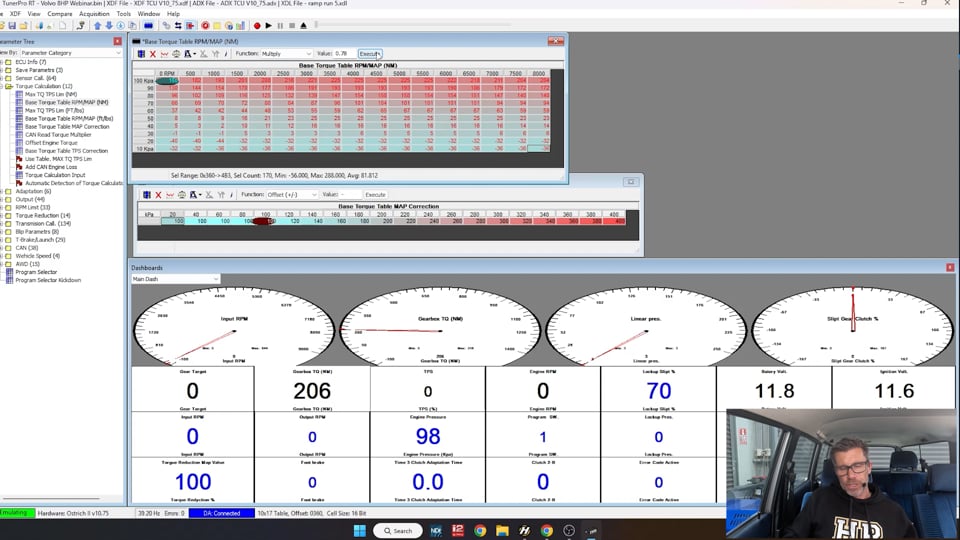
| 05:44 | So, we've already got our torque calculation set to zero for internal which means that the Turbolamex is going to rely on internally calculating the torque that the engine is producing and it does this in a reasonably simple way, all it's essentially doing is looking at manifold pressure versus RPM and then we have this base table which we'll find here, base torque table, RPM via map, this one is in newton metres. |
| 06:10 | So, this is the table it's going to use, basically depending on where you are in the table, this is the number that is going to be output. |
| 06:18 | Now, there's a little bit more to it because our vehicle is turbocharged here and of course the torque is going to depend on boost pressure as well. |
| 06:27 | So, we also have a torque based map correction and just drag this out, so we can see both in at the same time. |
| 06:35 | Now, the manual suggests that this table in most instances can be left alone, it shouldn't need to be adjusted and what we can see is it's just a linear relationship between our manifold absolute pressure and our torque correction factor. |
| 06:49 | So, now that we've seen this, we'll actually leave that up for a moment because this will come into play shortly. |
| 06:54 | Now, looking at this as well, if you want to work in pound foot instead of newton metres, there is another map here which is exactly the same map, it just changes the units, bring this up here simultaneously. |
| 07:07 | So, depending on your own personal preference. |
| 07:09 | Now, the good news is you don't have to tune both of these tables, if you adjust one it will also adjust the other. |
| 07:16 | OK, so how do we get started? Well, the first place to get started here is to look at what our engine is actually producing and then compare this to what this table is outputting. |
| 07:27 | So, remember if we looked at our dyno screen, I'm just rounding this to 350 newton metres there, so that's what the engine is actually producing at the hubs. |
| 07:36 | We do need to take into account some kind of drivetrain loss factor in here and this is always hotly debated. |
| 07:44 | The good news is we don't have to have this absolutely pinpoint accurate. |
| 07:50 | But we're going to do our absolute best. |
| 07:52 | So, what I'm going to do is bring up my calculator here and we're going to go 350 and I'm just going to use a correction factor of 10%, so 1.1. |
| 08:00 | So, we're going to call this 385 newton metres flywheel. |
| 08:04 | OK, now that we've got that, what is our table actually reporting? Well, we can see that our maximum numbers in this table sit at around about 288, let's just call it 290 for rounding. |
| 08:15 | But we were running around 10 psi boost which puts us right around this area here. |
| 08:21 | So, what we need to do is have a multiplication factor. |
| 08:24 | So, we know that our engine is producing 385 newton metres, there or thereabouts. |
| 08:29 | Let's just see what this table is reporting. |
| 08:31 | So, 288 multiplied by our map correction factor of 1.7, 489. |
| 08:38 | So, we are over reporting torque quite dramatically. |
| 08:42 | Obviously, the base engine that this gearbox was behind, quite a bit more torquey than the 2.3 litre four cylinder turbo. |
| 08:51 | So, the recommendation to get started with this is to simply make an across the board percentage adjustment to sort of refine these. |
| 08:59 | What we want to do is take our 385, divide that by our 490, it gives us our correction factor of 0.78. |
| 09:07 | So, in other words we need to take about 22% out of this table. |
| 09:11 | So, how do we do that? Let's just go through here and see our options. |
| 09:15 | We've got this function up here. |
| 09:17 | So, at the moment it says offset plus or minus. |
| 09:19 | What we want to do here is just open that drop down menu and select multiply. |
| 09:24 | We want to enter our value of 0.78 here. |
| 09:28 | And we can highlight the entire table by clicking in the top left hand corner and click execute. |
| 09:34 | OK, so that's just made a broad across the range adjustment to our torque. |
| 09:40 | In order for that change to take place though, we also have to commit that change to the TCU and we can do that with that little box there or toolbar. |
| 09:48 | And it'll basically beep at you to tell you that that has been applied. |
| 09:52 | If you're watching as well, down here we see a little progress bar saying that we've had a successful flash of the TCU. |
| 09:59 | OK, so that's our very first step, but really all that's going to do is make sure that the peak value that we've got up here is at least in the ballpark. |
| 10:08 | And also just in conversation with some people who have a lot more experience with the 8HP than I do, namely Andrew from 8 Speed in Australia, as well as Greg from Turbolimic USA. |
| 10:19 | The torque values are more critical for our shift quality in the sort of cruise part throttle areas. |
| 10:27 | So, the areas around here, so this is the area we want to probably put the most effort into making sure that our torque values are reporting accurately. |
| 10:35 | As we move up in the load, it's a little less critical and generally I'd try and have these slightly over reporting rather than under reporting. |
| 10:43 | Remember if we're under reporting torque, it is possible that we could get some clutch slips, so we don't want that. |
| 10:48 | Alright, what we'll do is we'll get the engine started now, get it up and running. |
| 10:53 | And we'll go through the next step of this process. |
| 10:56 | Alright, so in our dashboard down here, I'll just pull this up now I've got our map multiplier out of the way, we can see that we've got on our main dash page, our gearbox torque newton metres being reported. |
| 11:08 | So, at the moment we've just started it up, so it's going to take a little while to sort of stabilise, but we can see that it's reporting about five newton metres. |
| 11:14 | Again simply going from the information provided on the Turbolimic website under resources, how to set this torque calculation up. |
| 11:23 | The first thing we want to do is at idle, make sure that we're reporting somewhere between about 10 and 20 newton metres. |
| 11:29 | We're obviously not there, so what I'm going to do is simply make some across the board changes here. |
| 11:34 | And I'm going to surround the cells that I'm currently in and sort of basically so, that we're going to get some interpolation. |
| 11:40 | While I'm doing this, while I'm making these changes, I want to make sure that I have a relatively smooth transition here. |
| 11:47 | I don't want to be creating any sort of nasty steps here. |
| 11:50 | So, let's come up to our function and we'll this time make this offset. |
| 11:56 | And let's just simply add, we'll start with eight and click execute and we'll commit those changes. |
| 12:03 | And of course now we are reporting 13 newton metres, so we've gone in the right direction. |
| 12:07 | Now, I also want to just be a little bit mindful of any steps that I'm creating in here. |
| 12:11 | So, we can see for example from 1000 to 1500, we've gone from 17 to 16 newton metres. |
| 12:19 | So, we don't really want these sort of steps, but before I fix all of that, we're going to go to our next point and again just from the Turbolimic manual, the recommendation is to bring our RPM up to 3000 and just hold a steady 3000, this is just in neutral here, we haven't got the car in gear. |
| 12:36 | And again at 3000 RPM we want to be reporting around about that same, between 10 and 15 newton metres, sorry 10 and 20 newton metres. |
| 12:46 | So, again we are a little bit low there. |
| 12:49 | So, what I'm going to do is again just make some across the board changes. |
| 12:52 | Basically, I'm just copying around the area or making changes around the area that we are accessing at the moment. |
| 12:59 | So, again we'll add let's say nine to this area here. |
| 13:05 | And again commit our changes and again we're now reporting 13 within our range that's recommended. |
| 13:11 | The last point we're going to do is up to 5000 RPM. |
| 13:20 | And again exactly the same here, we want to be reporting around about 15, between 10 and 20 newton metres. |
| 13:29 | So, again we'll just add six to that. |
| 13:35 | Commit our changes. |
| 13:37 | OK, and we'll come back down to idle where it's nice and quiet. |
| 13:40 | OK, so that's basically done what Turbolimic recommend, but what we've created is some steps here, so how are we going to deal with this? Well, first of all what I'm going to do is basically extrapolate my changes out and above 5000 RPM. |
| 13:54 | So, we added six, I'm just simply going to copy that across. |
| 13:57 | I'm also going to make these changes down a little bit lower as well. |
| 14:02 | I should have probably done this earlier, but this is in the overrun area, so a little bit less critical ultimately. |
| 14:08 | Now, we'll just have a look around and see if we've created any sort of ugly steps in this region and we can see here that's exactly what we've got where we did the 3000 and then the 5000, we've created this step. |
| 14:20 | So, let's come in here and we can just smooth this out, let's make this 23 newton metres and we'll make this 11. |
| 14:31 | We can also increase these values down here which I didn't before. |
| 14:37 | And again just coming back down into the idle area, just making sure that we haven't created any weirdness. |
| 14:42 | We've got this little area that I mentioned before, so let's just change that to 19, I'm just basically averaging things out here. |
| 14:49 | And because we've brought up all of these values in the 30 and 40 kPa areas, I'm also just going to assume that we're probably under reporting a little bit above here at 50 kPa, but we'll see how we can check that in a second, but I'm just going to guess ahead a little bit, let's just add in this case three newton metres to that area, we'll commit those changes. |
| 15:12 | OK, so that's the base setup. |
| 15:14 | We're probably now actually, now that our idle's settled down, a little bit low here, or at least towards the low end of the recommended spectrum, so let's just change these two values to 12 here, kind of splitting hairs and you can go around in circles with this, we're back to 13. |
| 15:29 | So, what I'm going to do now is do some steady state running on our dyno. |
| 15:34 | And we're going to be comparing what the dyno is reporting to what the turbo lamic is reporting. |
| 15:40 | Remembering again here, we are reporting torque at the hub with our mainline dyno. |
| 15:46 | So, this is going to involve that drivetrain loss, remember I've taken about a 10% approximation, this doesn't have to be perfect, but we just want to make sure that we're sort of there or thereabouts. |
| 15:56 | If I'm sort of 8-10%, reporting 8-10% more than what the dyno's showing, then I'm in pretty good shape. |
| 16:02 | So, what I'm going to do here is we'll just get our dyno set up with some data logging here and what this is going to show is our torque while the engine is running. |
| 16:11 | And I'll just make sure that I do have control over our dyno here as well. |
| 16:17 | We're going to go into ramp run mode, sorry steady state mode here. |
| 16:23 | And what we'll do is we'll start at let's say 1500 RPM. |
| 16:28 | Alright, so at the moment, yeah manual mode, I'm just going to perform this testing in, I think we're going to go into sixth gear. |
| 16:41 | Just make sure that we are actually reporting the right speed. |
| 16:48 | Yeah 1500 RPM. |
| 16:50 | So, what I want to do is basically make sure, it's just like tuning fuel and ignition, we want to make sure that we are as close to the centre of a cell as we can get to. |
| 16:58 | So, let's just come down here to 50 kPa and see if we can get into the centre of that cell. |
| 17:02 | We've got our engine pressure, manifold absolute pressure being displayed here. |
| 17:06 | We've also got our engine RPM being displayed here. |
| 17:09 | So, these are our metrics that we can watch and make sure that we are at least as close as we can get to the centre of the cell. |
| 17:16 | OK, so just looking at that, we've gone a little bit high on our RPM, but that's OK, bring it back down. |
| 17:22 | So, we're reporting as you can see at the moment 19 Nm and if we look at our dyno, we're reporting about 25, so realistically I want that cell to probably be more like around about 28. |
| 17:33 | So, we'll just change that one cell and press enter and now we've got 27 and our dyno's reporting 24, so we're in pretty good shape there. |
| 17:45 | So, what we want to do realistically is we'll make these changes across the board as well. |
| 17:50 | So, if I notice that I've just had to make a change there from 17 to 27, we've added 10, so realistically what I'll actually do is take that back down to 17 for the moment, we'll make the change to the right cell, 17 and what we'll do is highlight the entire 50 kPa row and we'll add 10 to that row. |
| 18:13 | So, that's going to have exactly the same effect there, remember I just undid the change that I made. |
| 18:17 | So, I've basically just guessed that if we are reporting low at that particular 1500 RPM point, we're probably going to be low everywhere else and it just speeds up the process and also means that we are going to end up having any trends that we're seeing sort of just extrapolated out. |
| 18:33 | OK, let's come up to 60 kPa and we'll repeat that process, I'll just add a little bit more throttle here, get our fan going as well. |
| 18:41 | And again just being nice and gentle on the throttle here just to make sure that I'm controlling both the engine RPM and our manifold absolute pressure. |
| 18:50 | Alright, 49 kPa, 15, we're about a little bit higher in our RPM and we can see we're reporting 41 Nm and our dyno's showing 50, so I really want to be around about 55 here. |
| 19:05 | I'm a little bit low in our engine pressure because the cell we can see has actually got 44 in it, but essentially what I want to do is add about 8 to that entire row. |
| 19:18 | So, we'll enter 8, execute and we'll lock that change in, commit it. |
| 19:23 | Now, we're registering 48, still a little bit low, but OK we'll add another 4 to that row. |
| 19:34 | Commit that change. |
| 19:36 | There we go, 52, now we're actually reporting probably a bit more like what the dyno's actually, showing directly, so probably want to add another 4 again. |
| 19:45 | Remembering we want to over report, let's actually add 2 in there. |
| 19:48 | Again doesn't have to be absolutely perfect, but we've got the ability to be pretty precise, so why not. |
| 19:54 | OK, so now we're seeing 54 on the turbo lamp at 51, so we're there or thereabout. |
| 19:59 | Let's do one more example here, we'll come up to 70 kPa. |
| 20:03 | Again just might need a little bit of adjustment on our dyno RPM. |
| 20:10 | And we'll just make sure that we're right in the centre of the cell, so just again watching this engine pressure here, just touch over 73, that's over 70 with 73 so just close the throttle down a little bit more here. |
| 20:25 | OK, so gone a little too far, it is a bit fussy about getting this in the right spot with the turbo. |
| 20:32 | OK, so we're reporting 75, 79 and we've got about the same at the hubs there on the dyno, we're reporting 80, so what we want to do is probably add in this case about 8 to that row at 70 kPa. |
| 20:55 | Alright, and there we go, we've got 86 now. |
| 20:58 | So, again yeah more than that 10% range there or thereabout, so I'm pretty happy with that. |
| 21:03 | So, this is a rinse and repeat, so I'm going to spend a lot of my time basically going through and making sure that in the cruise areas that, as I discussed here, we've got our torque as close as possible. |
| 21:14 | Now, of course just as usual when we're on a dyno, there is a limit to how low down we can go in the manifold pressure. |
| 21:20 | We want to make sure that we can do as much as we can, but of course if we shut the throttle down too far, we're not going to make enough torque to keep the dyno spinning and the dyno's simply going to slow down. |
| 21:30 | So, that means that it's essentially going to be impossible for us to get down into these 30, 20 and 10 kPa rows. |
| 21:37 | So, how do we deal with this? Well, what we're doing is just extrapolating the shape or the changes that we've made and you'll remember that we started with that overall percentage change and then when I did those tests at idle, 3000 and 5000, I extrapolated those changes down as well. |
| 21:53 | It's not going to be perfect, but we can't get access to those areas in order to correctly tune them, so we just make do. |
| 22:01 | We do have this function here in the little toolbar, we can view graphically what the table currently looks like and by pressing control and swinging this around, we can sort of see the general shape and making sure that our shape has not got any sort of weird holes or unusual shapes to it that could affect things. |
| 22:22 | Basically, we don't want to find that as we increase our manifold absolute pressure, we see our torque start to increase, then drop away and then start to increase. |
| 22:30 | That's going to potentially bring in some unusual and undesirable behaviour. |
| 22:35 | Now, I'm not going to do every cell here for this webinar, you've seen the steady state process as I mentioned, just a rinse and repeat of this through as many of the cells as we can in that critical cruise part throttle area. |
| 22:47 | The other aspect that I'll just quickly show here is how we can use the data logger in the Tuner Pro software and just basically see what our engine, what TCU was reporting versus the torque on our dyno. |
| 23:00 | OK, so what we'll do now is we'll just do a wide open throttle ramp run. |
| 23:05 | Let's get back to our dyno control here. |
| 23:08 | And we'll go to our ramp run, we'll just clear our existing ramp run out of here. |
| 23:13 | And what I'm going to do is get ourselves into sixth gear here for our ramp run. |
| 23:18 | We are going to go into our manual mode here. |
| 23:25 | OK, we're in sixth gear, so we're ready to perform our ramp run. |
| 23:28 | And we'll just press the little begin recording button, go to full throttle, we'll start our ramp run and let the dyno do its work. |
| 23:49 | Alright, let's let the dyno come to a stop, we'll go back into neutral. |
| 23:55 | Slightly different result than the one I had on the screen before, but there or thereabout, 340, so again if we bring up our calculator, we can just show what that would be. |
| 24:08 | 340 times 1.1, so 375, I think we were 385 last time, so there or thereabout. |
| 24:14 | So, we'll close that down. |
| 24:15 | We need to give this file a name, so I'll just call it webinar. |
| 24:21 | And now what we can do is play back that log file and we'll see what our results are during that log file. |
| 24:28 | We can pause this and what we want to do is sort of look at the newton metres that we've got here. |
| 24:33 | At the moment I've just got through to 100% throttle, we are sitting at 1765 RPM and we haven't actually started the ramp run yet. |
| 24:40 | So, I'll just scroll through here and we are just starting to perform the ramp run. |
| 24:45 | So, what I try and do here is go in 500 RPM increments. |
| 24:49 | So, at the moment we are at 2000 RPM and we are reporting 237 newton metres. |
| 24:57 | So, 2000 RPM I think is right at the start of our run. |
| 25:01 | We are over reporting here, we actually only had about 175 newton metres. |
| 25:07 | So, may be beneficial to bring that down a little bit. |
| 25:10 | And this is the shape of the torque curve dependent on the engine as well. |
| 25:13 | Remembering we're starting from a base file here for a naturally aspirated engine, I believe it was. |
| 25:19 | And we've got a turbocharger. |
| 25:21 | Now, despite having that manifold absolute pressure compensation, we can expect a slightly different torque curve from a small capacity turbo engine compared to a large capacity naturally aspirated engine. |
| 25:32 | So, what we'll do is we'll just grab our little bar here and scroll this across. |
| 25:37 | Let's see, well we've got it at 2500 RPM, close enough anyway. |
| 25:40 | We've got 260 newton metres. |
| 25:43 | And at 2500 RPM here we have, yeah still over reporting, we've got 200 newton metres. |
| 25:51 | So, probably really want to be about 220 or, so there, maybe 230. |
| 25:55 | Let's scroll through because I think we're going to start catching up with ourselves though as we come through this. |
| 26:00 | So, 3000 RPM there, now we've got 300 newton metres being reported. |
| 26:04 | And what I'll do is actually just bring in our RPM axis just to make things a little bit easier, we don't have boost on this block. |
| 26:12 | But 3000 RPM we have got about 225 newton metres. |
| 26:22 | So, that should be probably about 250 odd. |
| 26:25 | So, again we're under reporting at this point. |
| 26:27 | I'll scroll through here again, let's come up a little bit further this time into the area where we are actually at full boost. |
| 26:35 | So, let's go up to 5000 RPM and see how we're looking. |
| 26:38 | So, at 5000 RPM we can see our torque sitting at about 325, 330 newton metres. |
| 26:44 | Now, we can see that we're in the ballpark here, 365 newton metres. |
| 26:48 | So, again I'm not going to go through every cell here and show you the process, but you can get the picture here from just doing a ramp run, logging this and looking at our reported torque in the TCU versus our log torque inside of the dyno. |
| 27:04 | We can then make adjustments to this table. |
| 27:06 | Now, I have found that it is imperfect. |
| 27:10 | And what I mean by this is that you might get this dialled in perfectly at let's say 10 psi, increase the boost to 15 psi and you're going to find that the manifold pressure correction is not going to be perfectly accurate. |
| 27:24 | And hopefully you can understand why this could be the case. |
| 27:27 | I mean if you're running on a really good quality race fuel where you're not knock limited, you're going to be able to tune to MBT at 10 psi, 20 psi, maybe 30 psi. |
| 27:37 | That means that the relationship between torque and manifold pressure is going to remain much more constant. |
| 27:42 | If on the other hand you're tuning on a low grade octane pump fuel where the engine's becoming heavily knock limited as we start increasing the boost pressure, you're going to start seeing that fall away. |
| 27:52 | Now, this comes to the point of how fussy do we need to be? And from again just talking to people who've got a lot more experience with the 8HP than I have to date, under wider load, really we don't have to have this perfectly dialled in. |
| 28:08 | And again if anything we'd like to be slightly over reporting rather than slightly under reporting. |
| 28:14 | But again just to reiterate, it's the areas in the cruise, part throttle areas and transition areas of the torque map that we want to make sure that we've got dialled in. |
| 28:23 | Now, personally I think you could get a result out on the road with no access to a dyno just following Turbo Lamex's explanation. |
| 28:32 | Of course, that's going to be more difficult if you don't even know what your peak torque value from your engine is because it's never been on a dyno and maybe it's heavily modified. |
| 28:41 | That is an approach that is going to get results. |
| 28:45 | However, it might not be the perfect results. |
| 28:47 | And what you'll find is that over time after driving the vehicle, maybe between 500 and 1000 kilometres of use, you're going to start seeing the effect of any errors in that torque table. |
| 29:01 | And if we come to our dashboards we're going to be able to see this. |
| 29:04 | If we go to our adaptation, and essentially when the TCU is in a certain range of operation and this is a range of oil temperature, it's a range of engine RPM I think from memory and also torque, then it's going to basically adapt the pressure being provided to the clutch. |
| 29:23 | So, what it's looking at, it's trying to target a certain shift time, so how long a shift should take. |
| 29:29 | And if it's not matching that then it will start adapting or making changes to the pressure on the fly. |
| 29:35 | And what we can see is in here we've got some of our adaptations. |
| 29:39 | And again from what I've been led to believe here, if we're seeing numbers like I've got here, very close to zero, the adaption's essentially, it's like a closed loop fuel trim, you could liken it to. |
| 29:52 | So, the closer we are to zero, the better job we've done. |
| 29:56 | So, I would say I've probably done a pretty good job. |
| 29:59 | Andrew from 8th Speed in Australia suggested if we're starting to see numbers after 500 to 1000 kilometres of driving in the region of maybe 20 to 40 or above, then there's some work to do in the base torque table. |
| 30:13 | So, there you go, just a quick introduction to the process of setting up that internal torque calculation using the Turbo Lamech. |
| 30:21 | Remember if you do have questions on this particular webinar, you can ask those questions in the forum and I'll be happy to come and answer them there. |
| 30:28 | Thanks for watching. |
00:00 - Introduction: ZF 8HP Transmission & Turbolamik
01:15 - Why Accurate Torque Calculation is Critical
03:00 - Under/Over Reporting Torque: Effects on Transmission
04:10 - Torque Input Options: Internal vs. ECU Communication
06:20 - Project Vehicle: 1992 Volvo 240 Turbo Setup
08:00 - Turbo Lamec Software: Torque Calculation Menu Overview
10:00 - Internal Torque Calculation Mode & Base Torque Table
12:00 - RPM vs. MAP Table: Manifold Pressure & Boost Relationship
14:00 - Torque Correction Factor: MAP-Based Boost Adjustment
16:00 - Newton Metres vs. Pound Feet: Unit Conversion
18:00 - Initial Table Setup: Starting Values & Idle Reference
21:00 - Steady State Dyno Testing: Comparing Torque Values
24:00 - Drivetrain Loss Correction: 10% Approximation & Verification
28:00 - Tuning Multiple Load Points: 50 kPa, 60 kPa & Higher
31:20 - MAP Correction Limitations: Knock Limiting & Fuel Quality Effects
34:00 - TCU Adaptation Dashboard: Monitoring Long-Term Adjustments
36:00 - Using Adaptation Data: 20-40+ Range Indicates Need for Adjustment