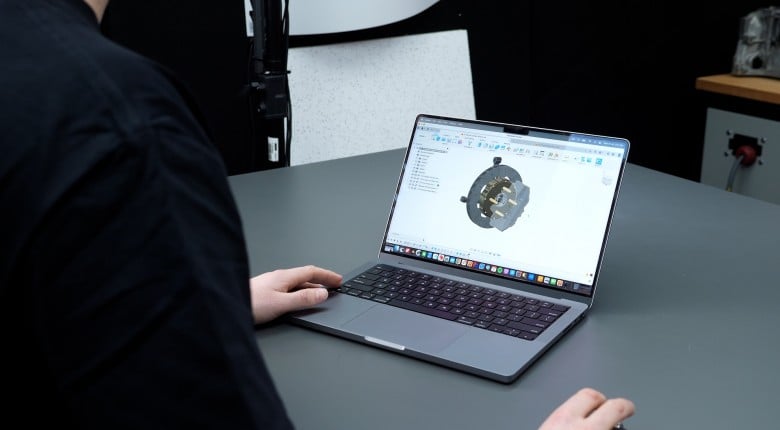
To design your own parts using CAD software, you’re going to need a computer... and probably not the 10-year-old laptop you inherited from your parents.
If you’re serious about learning CAD, there’s a good chance you already own a suitable computer. However, if you start running into performance issues or are considering purchasing a new machine, there are a few important factors to consider.
In this article: Laptop vs Desktop | Operating System Compatibility | CPU and RAM Requirements | Graphics Card Requirements | Storage and Solid-State Drives | Internet and Cloud Considerations | Peripherals and Monitors | Summary
Laptop vs Desktop for 3D Modelling?
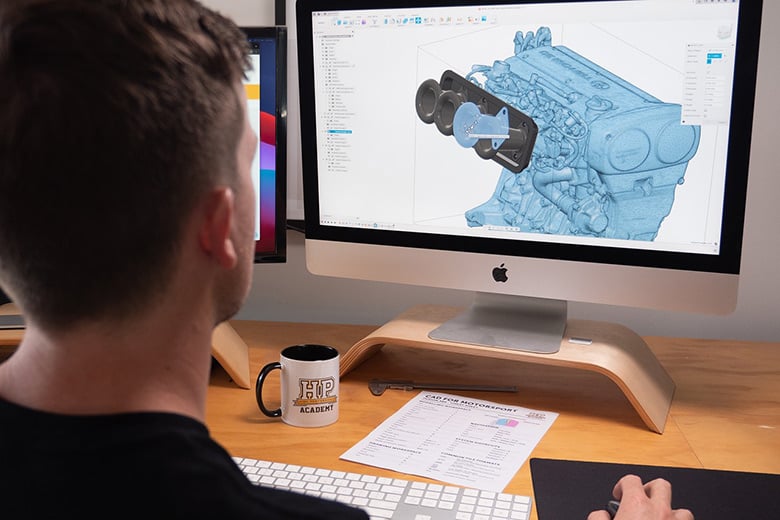
First, it doesn’t really matter whether you use a laptop or a desktop, but there are obvious trade-offs between portability and performance, since you’ll usually get more power from a desktop for the same money, but you'll be tied to one workspace.
That said, modern laptops are more than capable of running most CAD programs effectively, and there are plenty of affordable options in both categories that are up to the task, so the decision ultimately comes down to how and where you prefer to work.
CAD Software Operating System Compatibility
A key technical consideration is your operating system.
If you’re planning to use Fusion, it’s less critical whether you’re on Mac or Windows, since Fusion and AutoCAD support both platforms. Onshape is also relatively flexible here because it runs in a supported web browser rather than as a traditional installed CAD package.
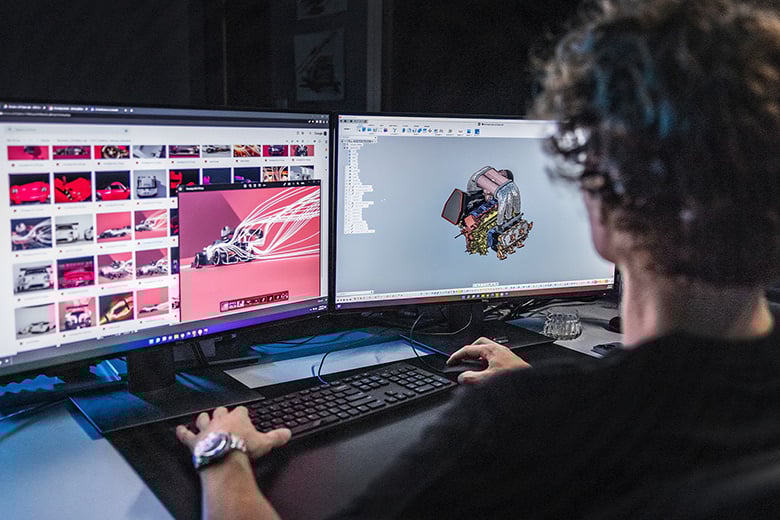
However, other programs such as SolidWorks, Catia, Inventor, and Solid Edge are more restrictive. Solid Edge, for example, is currently certified for supported 64-bit Windows 10 Pro or Enterprise and Windows 11 Pro or Enterprise systems rather than Home editions. So if you plan to use one of these packages, you’ll want a Windows-based machine that comes with Pro or Enterprise bundled to save a bit of money.
Here at High Performance Academy, we use both Fusion and SolidWorks, and that means we need separate systems for both. If you specifically want to learn the SolidWorks workflow without stepping straight into a full commercial package, SolidWorks for Makers is also worth considering as an entry point.
CPU and RAM Requirements
As software becomes more powerful and complex, the demands on your hardware increase accordingly.
For something like Fusion, you’ll need a modern 64-bit processor. Older 32-bit processors aren't supported, and while basic modelling can be done on lower-spec hardware, faster clock speeds and more cores will make a noticeable difference once your projects become more demanding.
More RAM allows your system to handle more complex models and multitasking without slowing down. Fusion, for example, can run on a fairly modest system, but realistically, you shouldn't be considering anything less than 8GB in our experience. Ideally, 16GB or more will provide a much smoother modelling experience, particularly when working with larger assemblies.
Onshape is generally lighter on local hardware thanks to its cloud-native approach, but 8GB is still a sensible baseline and 16GB or more helps when you’re working across multiple browser tabs or more complex projects. At the other end of the scale, Solid Edge lists 16GB of RAM as a minimum for commercial users and recommends 32GB or more, which shows how much requirements can vary depending on the software you choose.
Graphics Card Requirements
Graphics performance requirements vary by software. Fusion, for example, can get started on modest graphics hardware with 1GB of memory, but it still benefits from a dedicated graphics processing unit of 8GB+. Onshape recommends at least 1GB of video random access memory for everyday use and 2GB or more for larger assemblies, while Solid Edge currently lists 2GB of video random access memory in its recommended configuration.
If your system doesn't have a dedicated graphics processing unit, increasing system RAM can help to some extent. However, a dedicated graphics card will provide noticeably smoother navigation and modelling performance, so it's definitely worth investing.
In short, while you don't necessarily need a high-end workstation graphics processing unit to get started, having a dedicated graphics card improves overall usability.
Storage and Solid-State Drives
One of the most impactful upgrades you can make to any CAD system is installing a solid-state drive.
If you're still running an older hard disk drive, replacing it with an SSD can make a dramatic difference in system responsiveness, as these drives have no moving parts and don't need to spin up to access data.
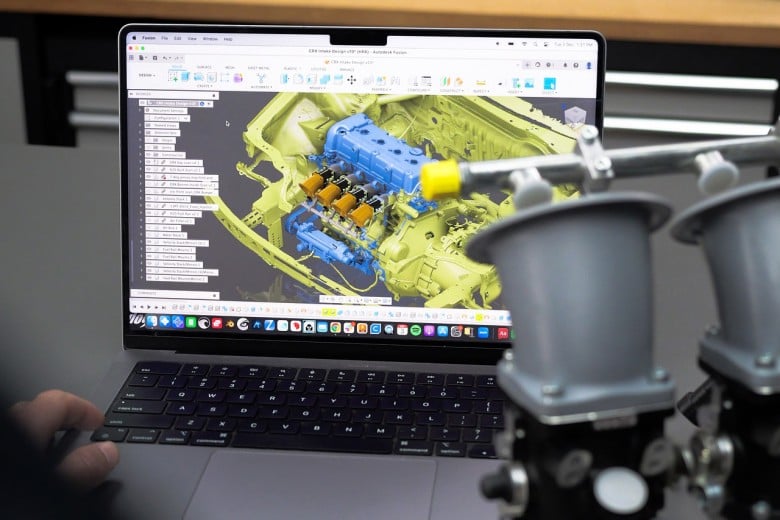
You'll also need adequate storage space for installing the software. Requirements vary widely between programs, ranging from just a few gigabytes to over 40. Solid Edge, for example, currently lists 12GB of disk space just for installation before you account for projects and supporting files.
Beyond installation space, storage is required for CAD files such as parts, assemblies, and drawings. While simple models take up minimal space, complex assemblies can grow very quickly in size.
Internet and Cloud Considerations
Cloud-based software like Fusion stores files online by default, while Onshape is built around a cloud-native workflow and runs through your browser. This can help manage storage space locally, although there are still limits and performance considerations depending on your workflow.
When working with cloud-based software, you'll need a stable internet connection. Fusion currently calls for at least 5Mbps download and 1Mbps upload, while Onshape places a strong emphasis on connection stability, low latency, supported browsers, and properly configured WebGL performance.
Peripherals and Monitors
If you’re using a laptop, a mouse is essential. Trackpads aren't well-suited to navigating CAD software, particularly when rotating and zooming models in 3D space.
A standard mouse with a clickable scroll wheel is ideal. While dedicated CAD devices such as 3DConnexion’s Spacemouse are available, they aren't required and can take time to get used to.
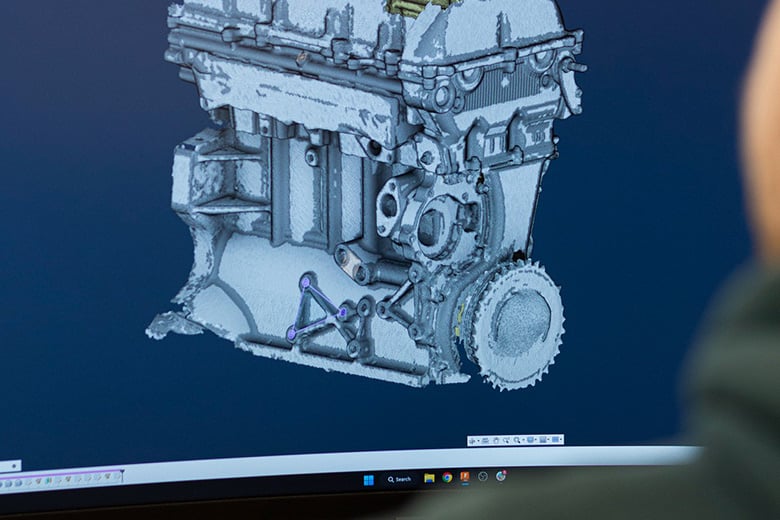
Most modern monitors are more than adequate for CAD work, but adding a second monitor can significantly improve workflow by allowing you to keep reference material or drawings visible while modelling.
Summary
Choosing a laptop or desktop for CAD comes down to personal preference and workflow needs.
- Laptop or desktop — either works; desktops offer more performance per dollar, laptops offer portability. Modern mid-range machines in both categories are capable of running most CAD software.
- Operating system — Fusion and Onshape are flexible across Mac and Windows, but packages like SolidWorks, Catia, Inventor, and Solid Edge are Windows-only. Some (like Solid Edge) require Pro or Enterprise editions, not Home.
- Processor — a modern 64-bit CPU is a must. Older 32-bit processors aren't supported, and faster clock speeds and more cores will matter as projects grow in complexity.
- RAM — in general, 8GB is the bare minimum, 16GB is the recommended target for smooth modelling and 32GB or more is the dream.
- Graphics card — a dedicated GPU isn't always mandatory but makes a noticeable difference in navigation and modelling performance. If you do get one, target 1GB minium with 8GB+ giving ultimate performance.
- Storage — an SSD is one of the highest-impact upgrades you can make. Allow for installation requirements (up to 40GB+ for some packages) plus space for parts, assemblies, and drawings.
- Internet connection — required for cloud-based tools. Fusion calls for at least 5Mbps down/1Mbps up; Onshape and SolidWorks for Makers are browser-based and emphasise low latency and WebGL support.
- Mouse — essential if using a laptop. A standard mouse with a scroll wheel is all you need; a 3DConnexion SpaceMouse is an option but not required.
- Monitor — any modern display works. A second screen is a worthwhile addition for keeping reference material visible while modelling.
- Before you buy — check the official system requirements for your chosen software and compare them against any machine you're considering.
Before committing to any purchase, review the system requirements for your chosen software and compare them carefully against your computer specifications. And if your goal is specifically to learn the SolidWorks workflow, SolidWorks for Makers is worth keeping on your radar as well.